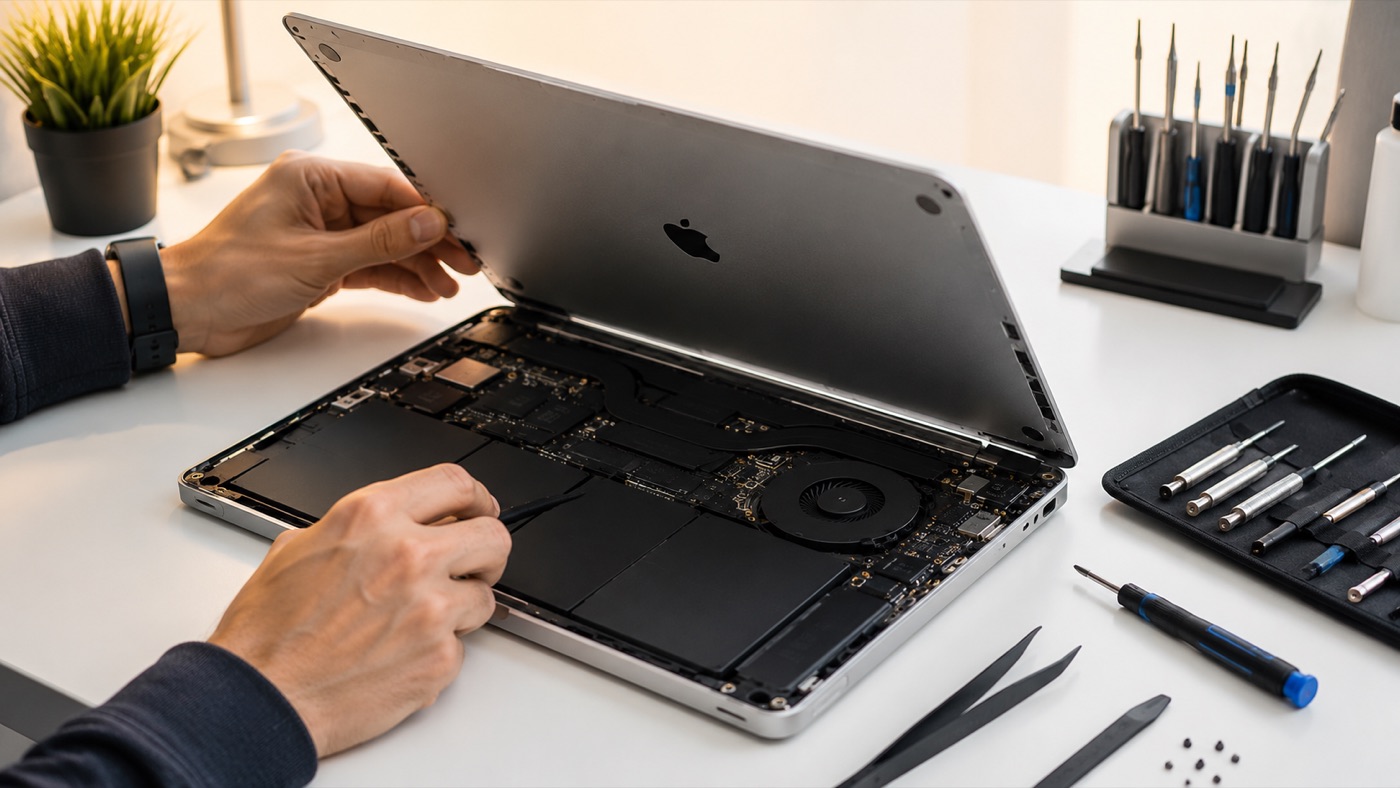
Identify what the Mac does before trying to repair it. No power, a black display, a flashing question-mark folder, a stalled Apple logo and repeated kernel panics point to different parts of the startup process. One controlled check can clarify the fault; repeated forced starts can put unsaved data and a weak storage device under more stress.
Begin with safe external checks
Disconnect docks, external drives, printers and other accessories. Inspect the Mac, charging ports, cable and adapter for bent connectors, fraying, scorching, swelling or signs of liquid. Use a known working wall socket and the correct compatible charger, connecting it directly rather than through a dock. If the battery is deeply discharged, leave the proper charger connected before testing the power button again.
For a forced restart, hold the power or Touch ID button until the Mac switches off, release it, then press it once normally. Do this as a diagnostic step, not as a loop. If the machine recently suffered a fall or liquid spill, smells burnt or has a swollen case, disconnect power when safe and stop. Applying more power to damaged electronics can turn a limited fault into wider board damage.
No power at all
No power means there is no chime, fan, display activity or other sign that the machine has started. Check the full charging path first: socket, adapter, detachable cable if present and every suitable charging port. A damaged cable can look normal near the middle and fail close to a connector. If another compatible, known-good adapter produces no change, the fault may involve the battery, charging circuit, power button or logic board.
Do not assume a blank screen always means no power. A powered Force Touch trackpad may click, a fan may move, or an external display may react even when the built-in panel stays dark. Those signs shift the diagnosis towards display or startup trouble. A proper Mac repair diagnosis can separate a charging fault from an internal power fault without replacing parts by guesswork.
Power signs but a black screen
A chime, fan, keyboard light or other activity with no visible picture means the Mac is receiving at least some power. Raise brightness, disconnect external displays and remove adapters that could redirect video. Look at the screen in normal room light for a very faint image, which can indicate a backlight problem. If available, a known working external display can help distinguish the internal panel from a wider graphics or startup fault.
Keep the test simple and note whether the Apple logo ever appears. A Mac that shows an image externally but not on its own display needs display-path investigation. A machine that remains black on every display may still have a firmware, storage or logic-board problem, so a screen replacement should not be ordered from the symptom alone.
A flashing question-mark folder
The flashing folder means the Mac cannot find a valid startup system. The cause may be a damaged macOS installation, a corrupted file system, a changed startup-disk setting or storage that is no longer detected reliably. It is not a request to reinstall macOS immediately. First start macOS Recovery and check whether the internal disk appears in Disk Utility.
If the disk appears with the expected capacity and no physical warning signs, Disk Utility’s First Aid can check its structure. If the disk is missing, repeatedly disconnects or contains the only copy of important files, stop before erasing, partitioning or reinstalling. Those operations can change recoverable data. A data-recovery assessment should come before an operating-system repair when the files matter more than getting the Mac to boot.
An Apple logo that stalls or loops
An Apple logo proves that initial power-on and firmware stages have progressed, but macOS has not finished loading. Common causes include a failed update, a file-system problem, incompatible system software, insufficient storage or failing internal hardware. Disconnect non-essential accessories and try one normal start. If the bar freezes again or the Mac returns to the beginning, use the correct Safe Mode or Recovery method for its processor type.
Safe Mode loads fewer extensions and performs basic startup checks. If it reaches the desktop, back up important files before investigating login items, recent software or available storage. If Safe Mode also fails, Recovery can show whether the startup volume is present and offer Disk Utility. Reinstalling macOS may preserve user data in normal conditions, but it is not a data-recovery method and should not be the first move on an unstable or missing disk.
A kernel panic restart loop
A kernel panic usually displays a message saying the computer restarted because of a problem, then may repeat during startup or shortly after login. Faulty peripherals, low-level software, macOS damage, memory trouble and other hardware faults can all cause it. Remove external devices and test Safe Mode. If Safe Mode works, preserve the data and examine recent system extensions, security tools or drivers before reconnecting accessories one by one.
Repeated panics with no peripherals, panics inside Recovery or shutdowns before any system loads make hardware more likely. Record any visible message or panic details instead of repeatedly restarting. A MacBook that also overheats, has liquid history or shows an unstable display needs physical inspection. The MacBook repair service covers this kind of combined hardware and software diagnosis.
Apple Silicon startup and recovery options
On a Mac with Apple silicon, shut it down, then press and hold the power or Touch ID button until startup options appear. Select Options and continue to enter macOS Recovery. To use Safe Mode, reach startup options, select the startup volume, hold Shift and choose the Safe Mode continuation shown on screen. These steps use the startup-options interface rather than Intel keyboard shortcuts.
Apple silicon Macs do not have a user-resettable SMC, and there is no manual NVRAM-reset key combination equivalent to the Intel procedure. Power management and startup settings are handled by the integrated architecture. A complete shutdown and normal startup is the appropriate simple reset. Instructions telling every Mac owner to use Intel SMC or NVRAM combinations are therefore misleading for these machines.
Intel Mac startup and recovery options
On an Intel Mac, hold Command and R as the machine powers on to request the built-in Recovery system. Holding Shift during startup requests Safe Mode. If the Mac starts this way, back up first and then isolate recent software or login changes. Keyboard timing and wireless keyboards can complicate startup commands, so a built-in or wired keyboard is preferable where possible.
Intel Macs do support SMC and NVRAM resets, but they address specific categories of fault. An SMC reset may help with power, charging, fans and some sleep behaviour; the exact procedure varies by Intel model and battery design. NVRAM can be reset at startup with Option, Command, P and R for stored startup-related settings. Neither reset repairs a failed drive, damaged display, liquid corrosion or broken macOS installation.
Know when to stop
Stop self-help when the Mac has visible liquid or impact damage, abnormal heat, a burning smell, an external mechanical drive that clicks, or storage that repeatedly disappears. Also stop when the internal disk is absent from Recovery and the files have no other copy. Intensive disk checks, repeated installations and erase attempts can reduce later recovery options, while continued power can worsen electrical or mechanical damage.
If Recovery sees the disk consistently and the data is backed up, software repair is a reasonable next step. If data is unique, diagnosis should preserve it before pursuing a bootable system. Note the exact symptom, the last successful startup, any recent update or accident and what Recovery can see. That information leads to a safer diagnosis than another sequence of random resets.