
"Can we migrate without anyone noticing?" That was the first question from a client near Levallois who had 4TB of files sitting on an aging NAS and wanted to move to SharePoint without closing the office for even a day. Short answer: yes, as long as you never confuse a migration with a copy-paste job on a Friday evening. A clean cut-over gets planned days in advance, copies in parallel while the old system keeps running, and finishes with a verification pass just as thorough as the copy.
Start with an inventory: what, how much, and who owns it
The first mistake, almost always, is starting a full copy without knowing what it actually contains. Before I quote anything, I have the client list three things: what kind of data (documents, mail, photos, business databases), the real volume in GB or TB, and — crucially — who owns each shared folder. On a ten-year-old file server, it's not unusual to find entire folders still belonging to someone who left the company two years ago, with access rights nobody remembers setting up.
That inventory also lets me estimate the real copy time, which depends on upload speed as much as volume. An office in the 8th arrondissement with symmetrical business fibre faces very different constraints than a shop in the 19th still on ADSL with upload capped around 1Mbps: pushing up 500GB can then take several full days, worth knowing before setting a date.

Pick the destination before you start
The choice of where the data lands depends on how it's used, not on what's trending. For an individual, iCloud or Google Drive are usually more than enough. For a freelancer or small business already on Outlook, OneDrive and SharePoint inside Microsoft 365 remain the most coherent choice, with fine-grained folder-level access control. Google Workspace does the job just as well if the team is already living in Gmail and Docs. I cover the selection criteria and monthly costs by team size in my guide to cloud infrastructure cost for a small business, and I handle the full setup through my Microsoft 365 support in Paris service when that's the ecosystem chosen.
Pre-migration cleanup: don't move the junk
Migrating 3TB where a third is duplicates, stale temp files and a Downloads folder nobody ever emptied costs copy time, bandwidth, and often extra money in storage subscriptions. Before any copy starts, I run a duplicate-detection pass and get the client to sign off on a list of stale folders rather than deciding alone — only the data's owner knows whether an old "Archive 2019" folder is dead weight or still opened once a quarter. This trim typically cuts the real volume to migrate by 15 to 30%.
The parallel copy, while the old system keeps running
This is the core of the "no downtime" method: the old system never gets switched off before the new one is ready. The first full copy runs in the background, often overnight, so it doesn't saturate the line while the team keeps working on the original files. On a small business, this phase can run from two days to two weeks depending on volume and bandwidth, without anyone changing how they work.
Once the first full copy is done, differential syncs follow, copying only what changed. That narrows the gap between old and new to a few hours by the time the final cut-over is due, instead of recopying everything in one impossible overnight run.
The cut-over weekend
The cut-over itself almost always gets scheduled for a weekend — the one real interruption in the whole process: the old system gets frozen, the last differential sync runs, and access gets pointed at the new cloud location. For a small setup, this window usually lasts a few hours; for a small business with several servers and line-of-business software wired into storage, it can stretch across a full weekend.
I stay reachable through the entire window and always plan a rollback path in case something breaks: as long as the old system hasn't been switched off, you can fall back to it Monday morning without drama. That safety margin turns a risky migration into a routine one.

The post-cut-over verification checklist
A migration isn't finished when the copy finishes; it's finished after verification. I systematically check:
- file counts and total volume, compared between old and new locations, folder by folder;
- that a sample of files from each type actually opens (Word, Excel, PDF, images, databases), not just a file count;
- folder-level access rights, so a sales rep doesn't end up with accounting access, or lose access to their own folders;
- shared links sent to outside clients, which often break after the copy and need regenerating one by one;
- real syncing of workstations and mobiles to the new location, not just web-browser access.
Keeping a local copy for 90 days
Even after a successful cut-over, I recommend keeping the old system accessible — powered off or read-only — for 90 days before deleting anything. That's a reasonable window for a forgotten file or a rarely-opened folder to surface without putting anyone in a bind. This safety net costs very little — an old external drive is enough in most cases — compared with reconstructing data that's been permanently erased.
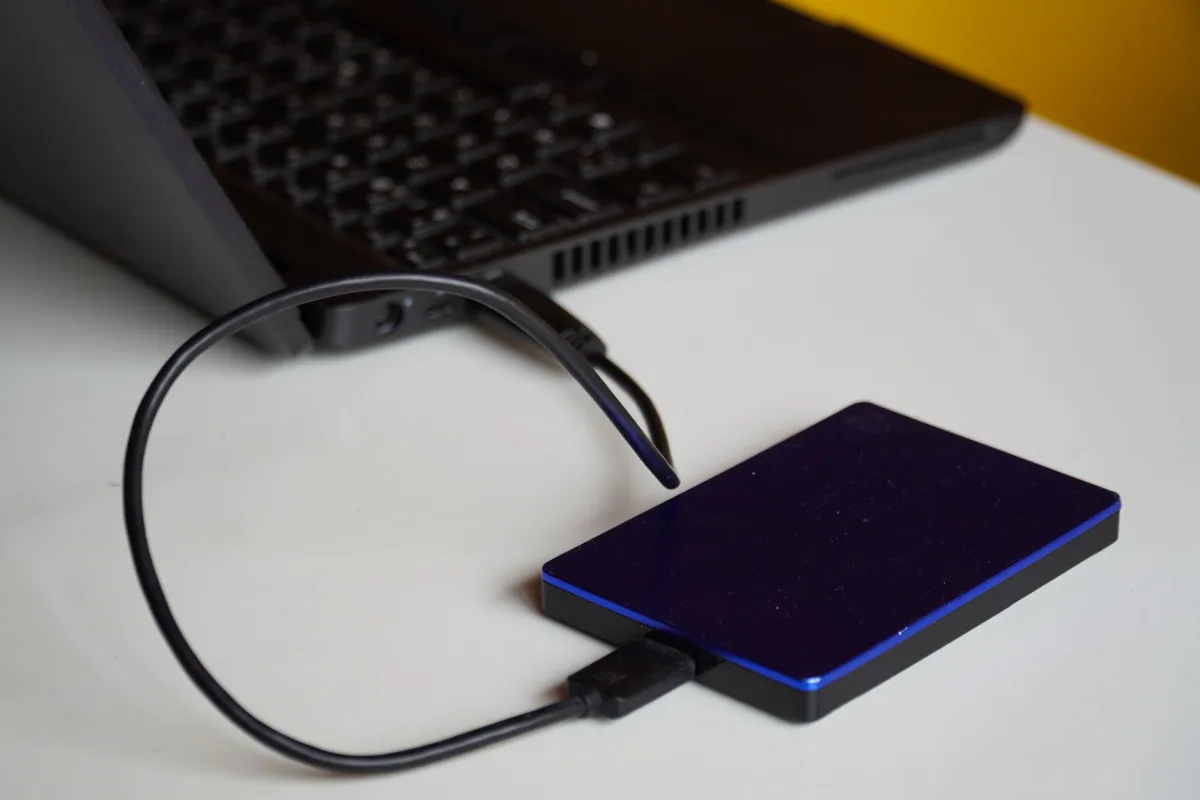
If a file turns out to be missing after that window, data recovery is still possible as long as the original drive hasn't been wiped.
What usually goes wrong
Across roughly thirty migrations I've run, the same problems keep coming back. Permissions first: a migrated shared folder sometimes loses its original rights and ends up open to everyone, or conversely locked out for people who should have access — the first thing I check. Shared links come next, sent months earlier: they point to the old file's internal ID and simply stop working once the copy is done, with no clear error for whoever clicks the dead link.
Outlook deserves its own mention: after a mailbox migration, the client rebuilds its local search index, which can take several hours — sometimes an overnight run — with incomplete results meanwhile. I always warn users to head off the Monday-morning panic over a search that turns up "nothing." Finally, upload speed is the most underestimated factor: a Paris business fibre line handles several hundred GB a day, but a lingering ADSL line or a capped consumer fibre plan can multiply the expected copy time by five or ten — worth checking before promising a date.
Realistic timelines and budget
Concrete reference points: an individual with under 200GB typically wraps up in half a day to a full day of work, for a flat rate around €250 to €400. A small business with 5 to 15 workstations and several hundred GB up to a few TB will spread the parallel copy over several days, with a cut-over weekend and a follow-up verification week, for a budget between €800 and €2,000 all in. My small business IT maintenance plan often folds in this follow-up.
The cloud is not a backup
One point I repeat at every migration: syncing to the cloud is not backing up. A sync mirrors changes in real time, including an accidental deletion or a ransomware event, which then propagate to every synced copy. A real backup requires version history and an independent copy of the main system. I cover that distinction, with the 3-2-1 rule, in my guide to backing up important data — worth reading before a migration, not after.
FAQ
How long does a data migration to the cloud take?
For an individual with under 200GB, expect half a day to a full day. For a small business with 5 to 15 workstations and several hundred GB up to a few TB, plan for a parallel copy over several days, then a cut-over weekend — one to two weeks in total including verification.
Does the cloud replace a backup?
No. Cloud sync mirrors changes in real time, including an accidental deletion or a file encrypted by ransomware. It only counts as a real backup if the service keeps version history and you also keep an independent, offline copy.
Why do some shared links break after a cloud migration?
Because they point to a file's internal ID on the old system, not its name. Once files are copied to the new service those IDs change, and old links stop working — they need to be regenerated after the cut-over.
How much does a cloud data migration cost in Paris?
Expect roughly €60 to €120 per hour depending on complexity, with a flat rate around €250 to €400 for an individual, and €800 to €2,000 for a small business with 5 to 15 workstations, including audit and verification.