I hear this question almost every week on home visits: "if my hard drive dies tomorrow, what do I lose?" Most of the time, the honest answer is: everything, or close to it. Family photos, scanned bills, client folders, a project you're halfway through — none of it exists anywhere except on the machine sitting on the desk.
Backing up your data isn't a technical habit reserved for IT professionals. It's a simple routine that takes about an hour to set up and then runs itself. This article explains how I set up a reliable backup for clients in Paris, with real hardware and real prices — and why this topic has nothing to do with data recovery after a crash, which always happens too late to be prevention.
The 3-2-1 rule, explained simply
The 3-2-1 rule fits in one sentence: three copies of your data, on two different types of storage, with one copy kept off-site. It isn't an official standard, it's a habit that came out of server rooms, and it works just as well for a home user.
In practice, for a typical client I see around Auteuil or Boulogne: copy one is the computer itself. Copy two is an external hard drive plugged in at home, updating automatically. Copy three is cloud storage, hosted elsewhere, which still protects you if there's a burglary, a fire or a water leak in the flat.
The part that actually matters is "off-site." An external drive sitting next to the computer protects against a drive failure, not against a break-in or a disaster. I've seen more than one client lose both their PC and their backup drive on the same day, simply because the two were in the same bag or on the same desk.
Setting up Time Machine on Mac (a real client example)
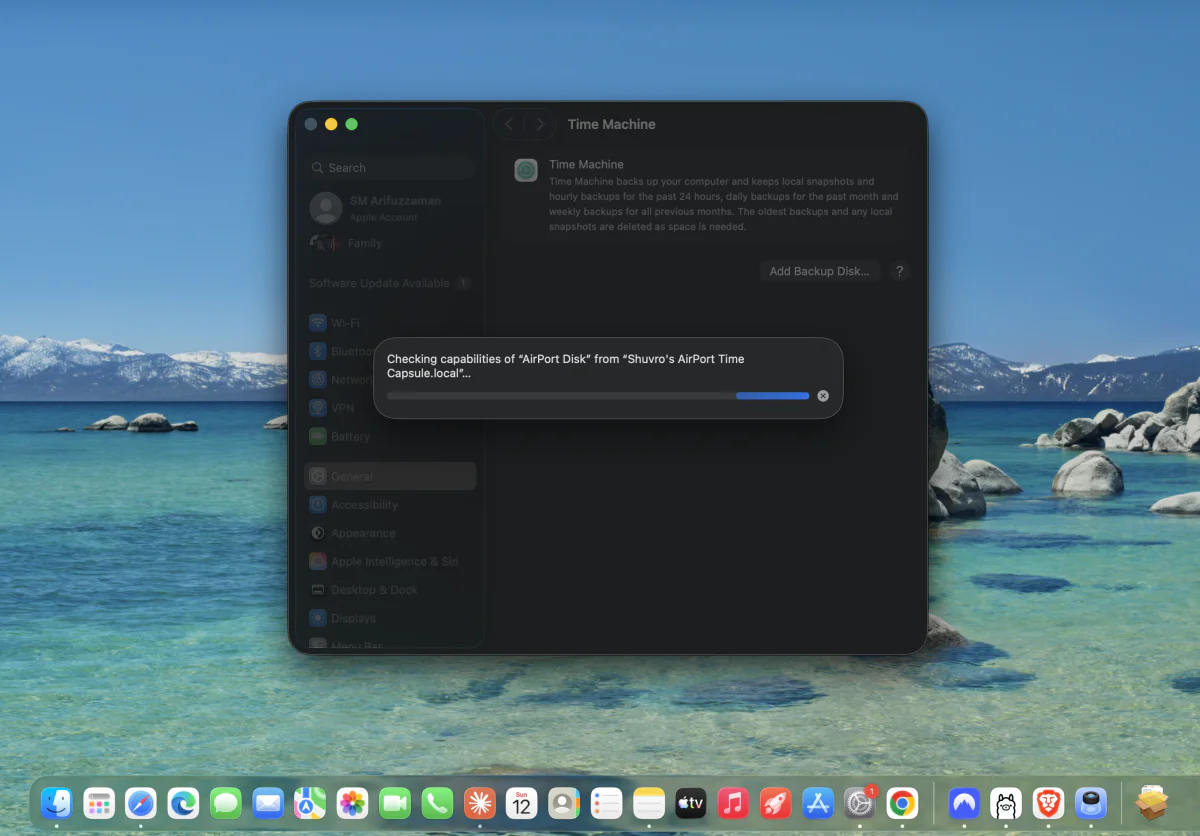
On Mac, Time Machine is, in my experience, the simplest option to set up — and the most reliable over time. For a client in Passy this July, I connected her MacBook Air to an external drive sitting near her router. System Settings > General > Time Machine, add the disk, tick encryption if the laptop sometimes leaves the flat, and that's it: the first backup runs in the background, and the following ones happen every hour without her having to think about it.

What fewer people know: Time Machine can also back up over a network disk, such as a Time Capsule or a NAS, which avoids plugging in a cable every time — exactly the setup on this machine. The first pass is slow, expect the better part of a night for a few hundred gigabytes over Wi-Fi, but after that the incremental backups are fast and invisible.
For a Mac used daily, I recommend a drive at least twice the size of the internal disk: Time Machine keeps a history (hourly backups for 24 hours, daily for a month, weekly after that), and it needs room to do that.
Windows File History
On Windows, the equivalent is called File History. It works differently from Time Machine: it only backs up your user folders (Documents, Pictures, Desktop, Videos), not the whole system. For everyday family use, that's usually enough — it's exactly the data that can't be reinstalled from a Windows disc.
Settings > Update & Security > Backup, plug in an external drive, turn the option on, and Windows will ask for a frequency (every 10 minutes by default, which is far too often for normal use — I usually set it to 3 hours) and a retention period.
One thing I often correct for small-business clients in the 17th: File History does not back up installed software or system settings. To restore a whole PC after a drive failure, you need a full system image, a separate feature accessible from the same panel but rarely enabled by default.
Choosing an external hard drive
I fit almost exclusively Seagate or WD drives for clients, for one simple reason: parts availability and reliability I've verified over hundreds of jobs since 2012.
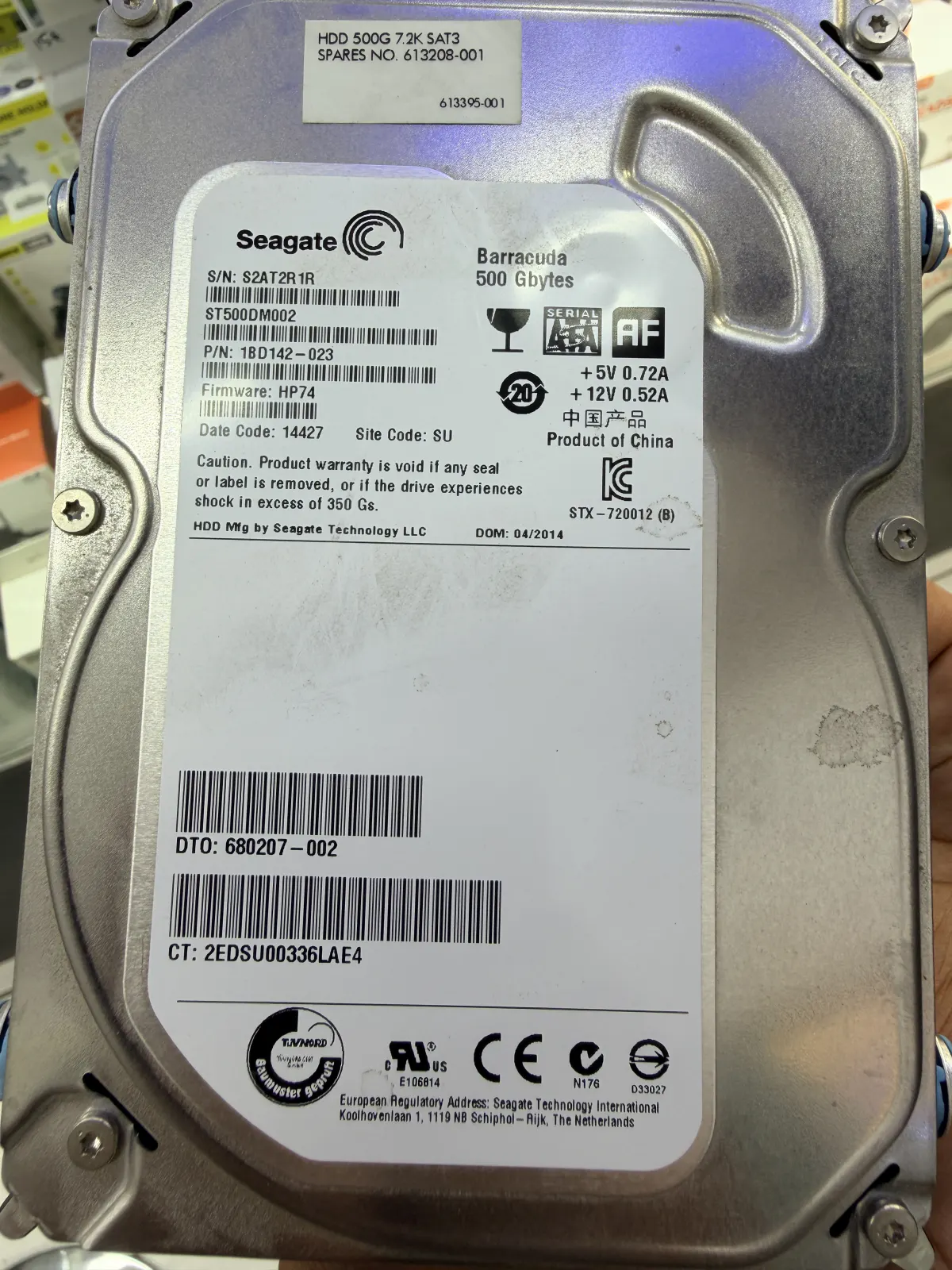
This Seagate Barracuda 500GB drive, for instance, ended its working life on my bench after several years in service for a client — well beyond the average lifespan of a mechanical drive, which sits more around three to five years under continuous use. That's the limit of any hard drive: it will eventually fail, sooner or later. A backup doesn't exist to prevent the failure, it exists so the failure has no consequences.
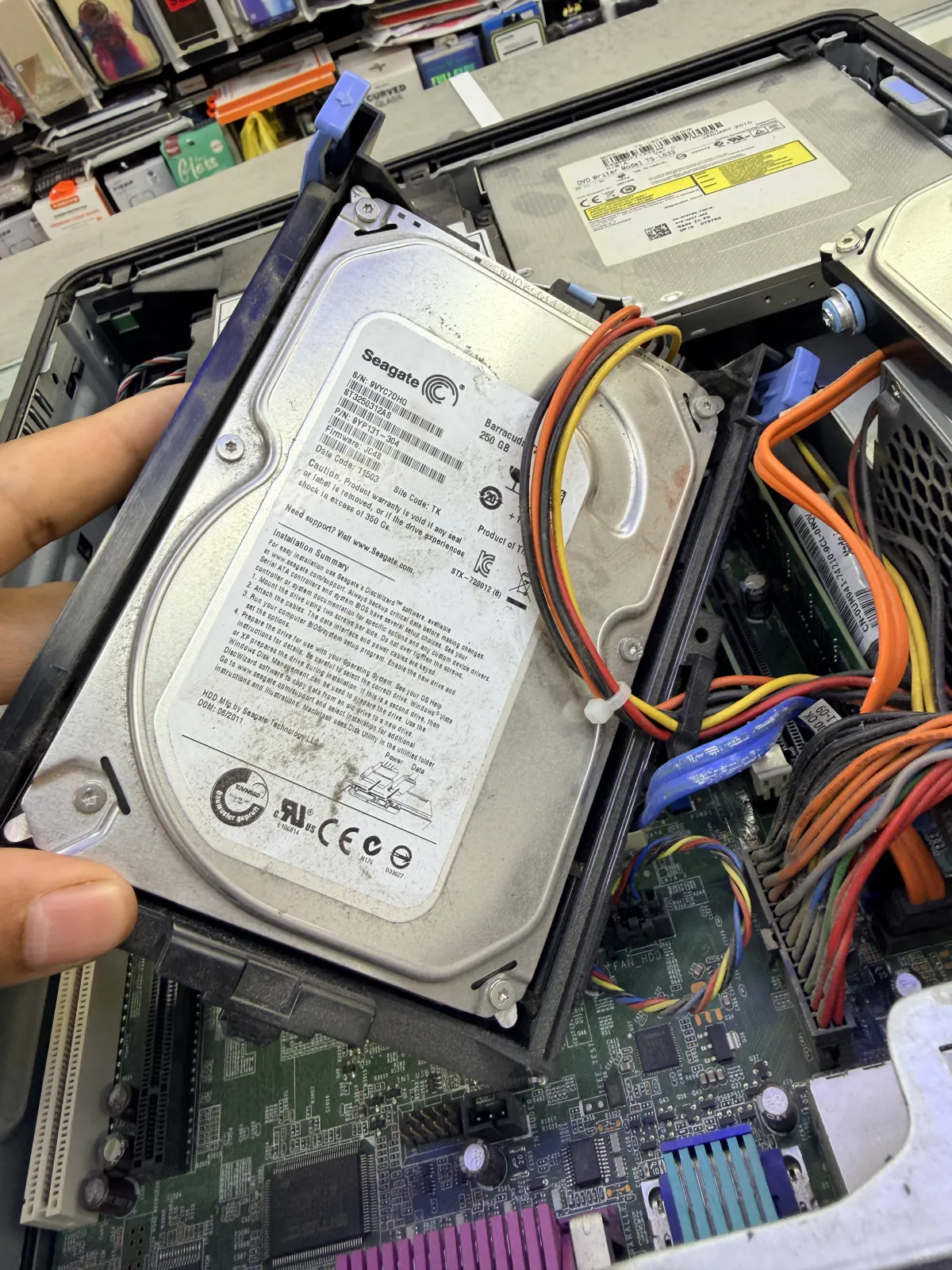
For a home user, a 2TB external drive (USB 3.0) costs between €65 and €90 in Paris depending on the brand. For a sturdier setup, an external SSD avoids mechanical shocks (useful if the drive travels with you) but costs more: expect €130 to €180 for 2TB. For a business machine holding a lot of data, I usually recommend a two-bay NAS in RAID 1, which tolerates one drive failing without any data loss — a setup I install regularly as part of small-business IT maintenance in Paris.
Cloud options and what they cost
Cloud storage complements an external drive, it doesn't replace it — unless your internet connection is excellent and your data volumes are modest. For everyday use in Paris, here's what I set up most often.
iCloud+: 50GB at €0.99/month, 200GB at €2.99/month, 2TB at €9.99/month. Convenient on Mac and iPhone, native syncing. Google One: similar tiers, 100GB at €1.99/month, 2TB at €9.99/month, with Google Photos included. OneDrive: bundled with a Microsoft 365 Family subscription (€99/year for 6 people, 1TB each), which I often set up alongside Microsoft 365 support for freelancers. Backblaze, less known in France but effective for backing up an entire drive with no volume cap, runs around $8/month — a solid option for anyone with hundreds of gigabytes of photos or video.
The real criterion isn't the price per gigabyte, it's simplicity: a cloud backup that needs a manual step every week never actually gets done. I always set the backup to run automatically in the background, never as a task to repeat.
What to back up first, and in what order
If you're starting from scratch, don't try to back up everything on day one. Start with what's irreplaceable: family photos and videos, scanned admin documents (tax records, contracts, official papers), work folders, passwords if you use a password manager. Everything else — software, purchased music, downloaded films — can be redownloaded or reinstalled.
For someone who has never set up a backup, I recommend starting with the external drive (quick to set up, free once you own the drive), then adding cloud storage afterward for off-site protection. That's exactly what I set up during a home IT support visit: an hour is usually enough to configure Time Machine or File History and kick off the first full backup.
Testing your backups — the step everyone skips
A backup you've never tested isn't a backup, it's a hope. I've seen external drives run silently for years without ever saving a single file, because of a permissions issue or a connection the system never fully recognised.
Twice a year, take five minutes: open Time Machine or File History, pick a random document from several months back, and check that you can actually open it. For a cloud backup, sign out and back in from the website to confirm recent files are really there. That one simple test would, on its own, have prevented about half the desperate situations that land on my workbench.
Backup and data recovery: two different things
People often ask me, in the same conversation, how to back up their data and how to recover it after a crash. These are two different jobs. A backup is prevention: it's set up before the problem happens, and its only purpose is to make a failure harmless. Data recovery happens after the fact, once a drive has already died and no copy existed — a technical, sometimes expensive process that doesn't always succeed.
I covered that topic in detail in an article on recovering data from a failing hard drive: the warning signs, and what to do — and not do — when a drive starts clicking or stops being detected. If that's where you are, this isn't the article you need.
FAQ — backing up your data
How much does it cost to set up a backup?
For a home setup (Time Machine, File History, or both, plus an external drive if needed), expect to pay between €60 and €90 for a visit of about an hour, drive not included.
Do I need to back up every day?
For personal use, an automatic hourly or daily backup, like Time Machine runs, is more than enough. What matters is that it runs automatically, not the exact frequency.
Is an external drive enough on its own, without cloud?
No, not fully. An external drive protects against an internal drive failure, but not against theft, fire or water damage affecting both devices at once.
What if my backup drive fails too?
That is exactly what the 3-2-1 rule is for: with three copies on two types of storage, losing a single drive, even the backup one, never leaves you without a copy.