A computer that suddenly slows down, starts showing ads everywhere, or has its antivirus turn itself off tends to raise the same question: do I actually have a virus, and how do I remove it without losing everything? The answer depends on what you're really seeing. Some symptoms point to a serious infection; others are just the normal wear of a machine that hasn't been maintained in a while. I see both almost every week with clients in Paris, and the method changes depending on what turns up once I actually look under the hood.

The signs that actually point to an infection
An active infection shows up as behaviour a healthy machine should never have. Pop-up ads opening even when no browser is running. A fan spinning at full speed while the computer is supposedly idle, a sign that some process is working in the background without your knowledge. Antivirus software that switches itself off, or that refuses to reopen. Contacts receiving emails you never wrote. A new toolbar or a search engine that took over the browser, usually right after installing free software downloaded from somewhere other than the official site.
On the other hand, a computer that's simply slow, that takes a while to boot or drags by the end of the day, most often has nothing to do with a virus. It's a full disk, too many programs launching at startup, or an ageing mechanical hard drive. And above all, a full-screen page screaming that "your PC is infected" with an emergency number to call is not a diagnosis: it's a tech-support scam, and the only useful move is to close the page, never to dial the number on screen.
The first steps, before you even run a scan
Before opening anything, turn off Wi-Fi or unplug the network cable. An active virus often talks to an outside server, whether to send out your data or receive new instructions; cutting the connection stops that exchange immediately, even if it doesn't clean the machine by itself.
If a message demands a cryptocurrency ransom to unlock your files, don't pay. Nothing guarantees you'll get anything back, and paying mostly confirms the victim is willing to pay, which invites more attempts. Keep the message and the name of the malware if you know it; both are useful for the cleanup.
Don't call any number shown by an alert, a pop-up or an email tied to the incident, and never hand over a password or a card number to someone calling you claiming to be tech support after that kind of alert. These reflexes often prevent more damage than the virus itself.
The full scan, quarantine, and a recent case
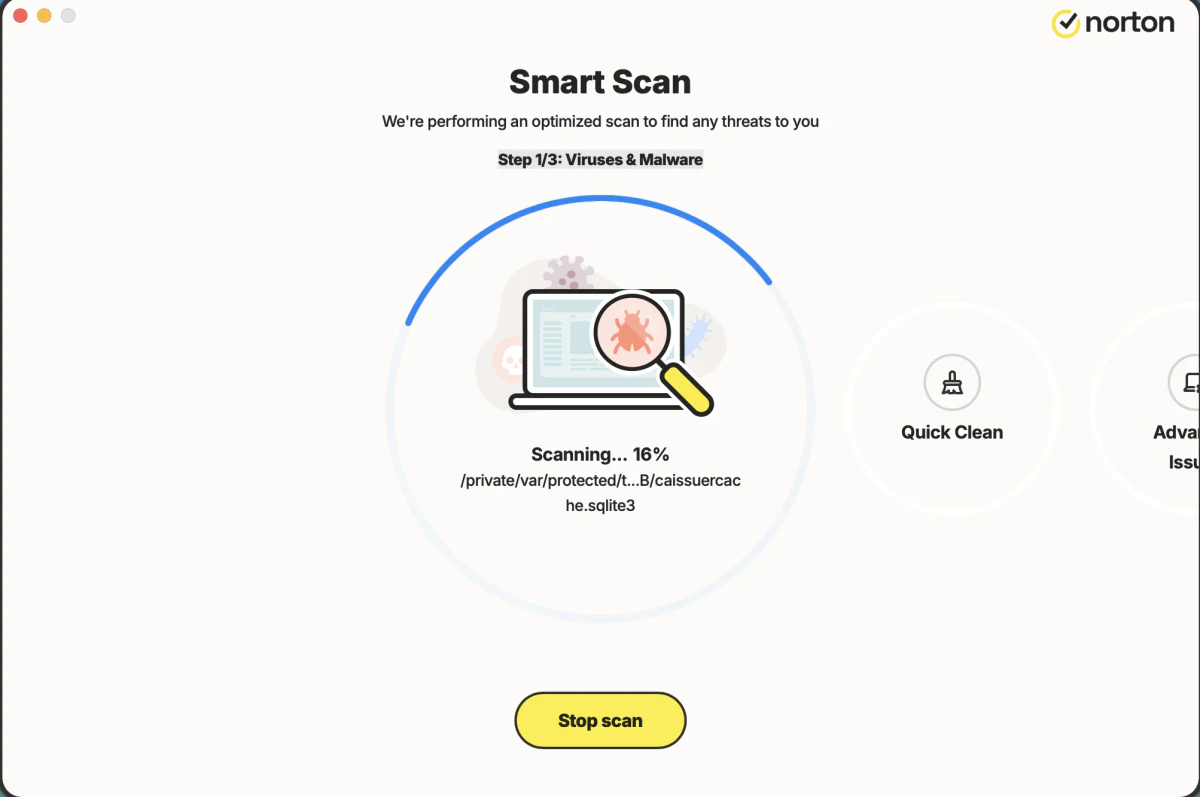
Once the machine is isolated from the network, the next step is a full antivirus scan, not a quick one. A quick scan only checks the most common locations; a malicious file can easily be sitting somewhere else, in a temp folder or a browser extension, waiting its turn.
A client near the 15th arrondissement called me about a laptop showing ads even with every window closed, and a fan that kept spinning for no reason. I ran a full scan with Norton 360, the antivirus already installed on the machine. The scan took a little over twenty minutes to go through the whole disk. Two files were flagged as an "HttpRequest" threat, typical of a component trying to reach out to the internet without permission. Both were placed in quarantine: quarantine isolates a file somewhere it can no longer run, without deleting it immediately, which lets you confirm it isn't a false positive before removing it for good.
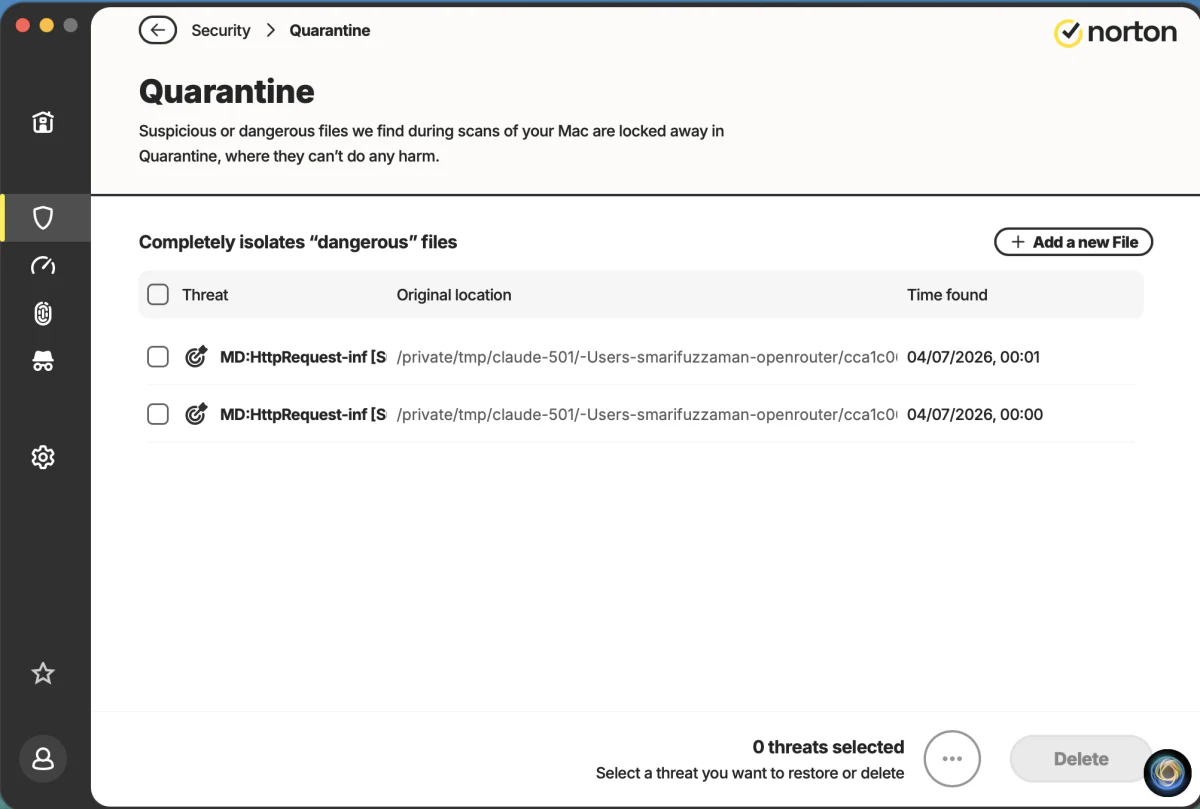
After confirming and deleting them, I re-enabled the network connection, ran a second full scan to confirm nothing was left, then checked the browser extensions and startup programs, two spots where unwanted software likes to reinstall itself.
Checking whether your credentials leaked on the dark web
A virus that ran undetected for several days may have grabbed passwords saved in the browser, or logged what you typed. Cleaning the machine doesn't make that information secret again. That's why I always suggest, after a confirmed infection, checking whether the client's email address or credentials show up in a known data breach.
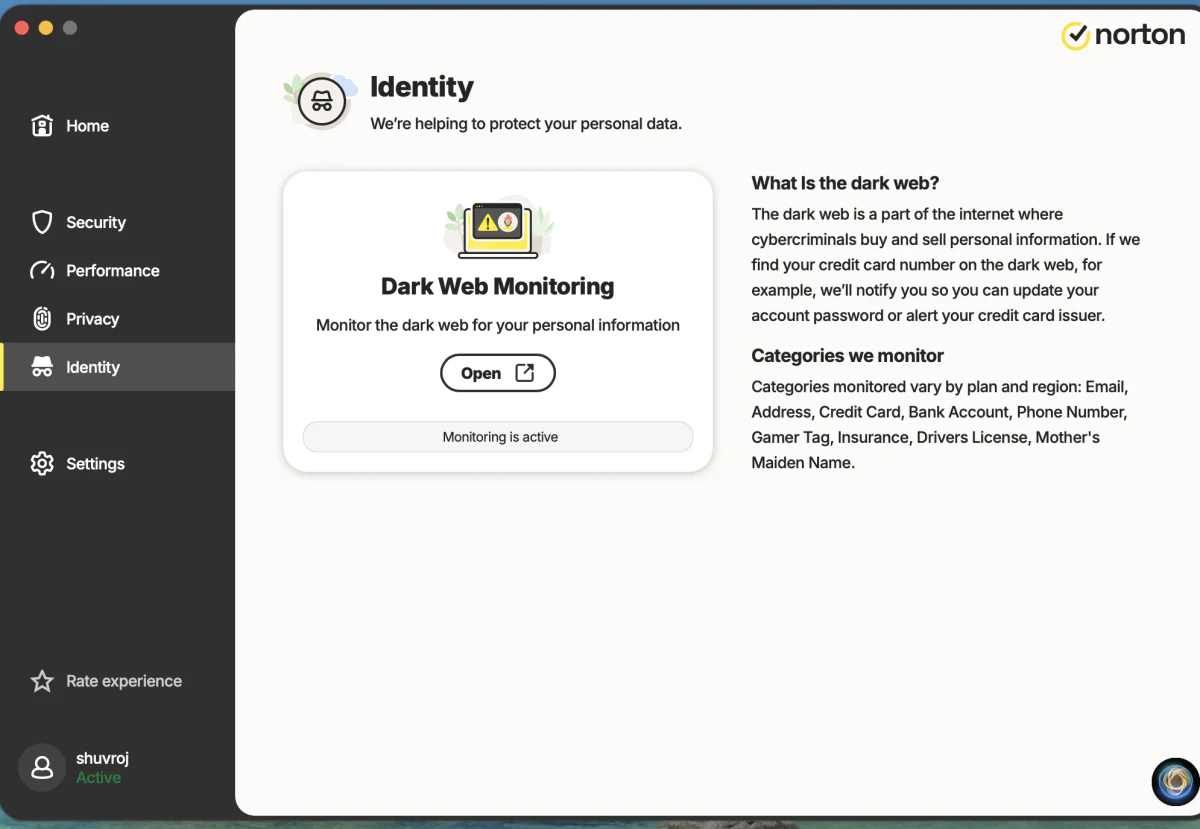
Dark-web monitoring tools, like the one built into Norton, continuously match your email, credentials or card number against known breach databases and alert you when there's a hit. It's a useful addition to free checks like Have I Been Pwned, not a substitute for common sense: change sensitive passwords after an infection, always starting with the primary email account, since it usually controls the reset process for everything else.
Clean it or wipe it: how I decide
This question comes up on almost every visit: why not just reinstall Windows and start fresh? Sometimes that really is the sensible move; sometimes it's a waste of time.
A targeted cleanup is enough when the scan only turns up one or two clearly identified files, the machine goes back to being stable after removal, and there's no sign of ransomware or persistent spyware. That's the most common case, and it's what happened with the client near the 15th.
A full reinstall is the better call when ransomware has already encrypted files, when a rootkit keeps coming back after every cleanup, when an infection returns within days of a first pass, or as soon as a banking trojan or keylogger is suspected on a machine used for online payments. In those cases, the risk of leaving something invisible behind outweighs the time saved by cleaning on the surface. Before any reinstall, I always back up documents, photos and other useful data onto a clean drive; if the disk also shows signs of failing, or files already look unreachable, a data recovery step needs to happen before the reinstall, not after.
Keeping it from happening again
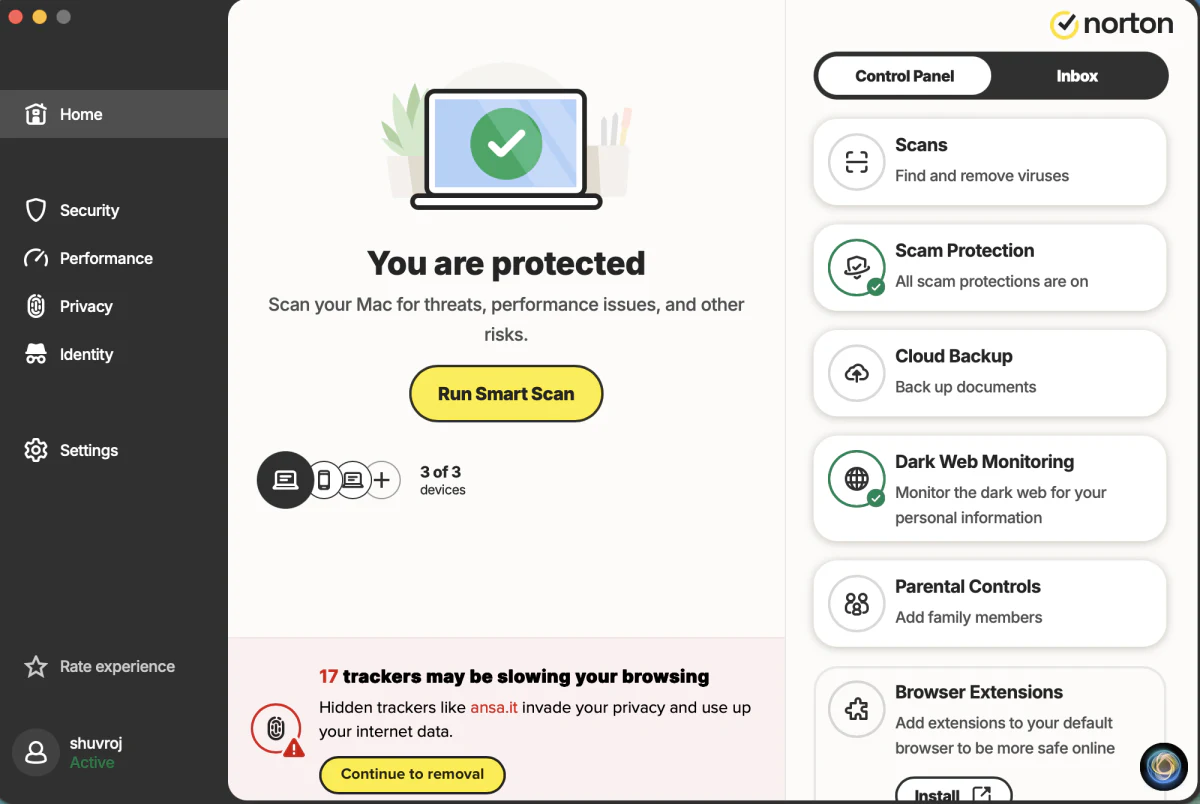
An antivirus that's kept up to date and always running blocks most common threats before they land, but it doesn't replace certain habits. Windows and macOS updates fix flaws that are actively being exploited, not just cosmetic details; putting them off for months keeps a door open. An unexpected attachment, even one that looks like it came from someone you know, is worth checking before opening, especially a compressed file or a document asking you to enable macros. Pirated software and cracked apps remain one of the most common infection sources I run into, far more than ordinary browsing.
For a small business, the stakes change scale: one infected machine can compromise a shared server or an entire business inbox. A small business IT maintenance plan with regular monitoring often catches the anomaly before it becomes an incident, which costs a lot less than an emergency callout across several machines.
Paris pricing
An initial diagnosis, remote or on-site, usually tells within a few minutes whether you're dealing with a real infection or just a slowdown. A full scan with quarantine and extension review generally runs around €69 to €89 depending on how long it takes. A complete reinstall with a prior data backup sits closer to €99 to €149, including a bootable USB drive if one is needed. For a home visit within central Paris, the call-out is included in the price quoted on the phone, no surprise once I'm on site.
Frequently asked questions
Is a free antivirus enough to remove a virus?
A free antivirus often catches common threats, but some only run a quick scan or offer limited quarantine. For a confirmed infection, I recommend a full scan with software that can quarantine files and check browser extensions, sometimes followed by a second check with a different tool.
Should I call the number shown by a "your computer is infected" alert?
No, never. These full-screen pages don't run any real diagnosis; their only goal is to get you to make a phone call. Close the page without clicking any button, and see my article on tech-support scams for the full response plan.
How long does a full cleanup take?
A full scan usually takes between twenty minutes and an hour depending on disk size. Counting the check of browser extensions, startup programs and a second confirmation scan, a complete visit most often takes between one hour and ninety minutes.
Do I need to change all my passwords after a virus?
At minimum the sensitive ones: primary email, banking, and any account sharing the same password. Start with email, since it usually controls password resets for other accounts. A dark-web leak check helps identify which ones genuinely need to be changed first.