Secure Business Wi-Fi Network: A Paris Guide
Default password, no guest network, firmware nobody ever updates: Wi-Fi is often the weakest link in a small office. Here's how to secure it properly, without losing a day to it.
Published on 4 Aug 2026 · Small business IT maintenance in Paris
This guide covers only the security side of business Wi-Fi: who can connect to it, what they can see passing through, and how to close doors that get left open without anyone noticing. If your Wi-Fi is simply slow, that's not the topic here: see slow home Wi-Fi, the fixes or, for the typical older Paris apartment building, the slow Wi-Fi in a Paris apartment guide. This article is strictly about security, guest networks and good habits.
WPA2 or WPA3: which standard to choose
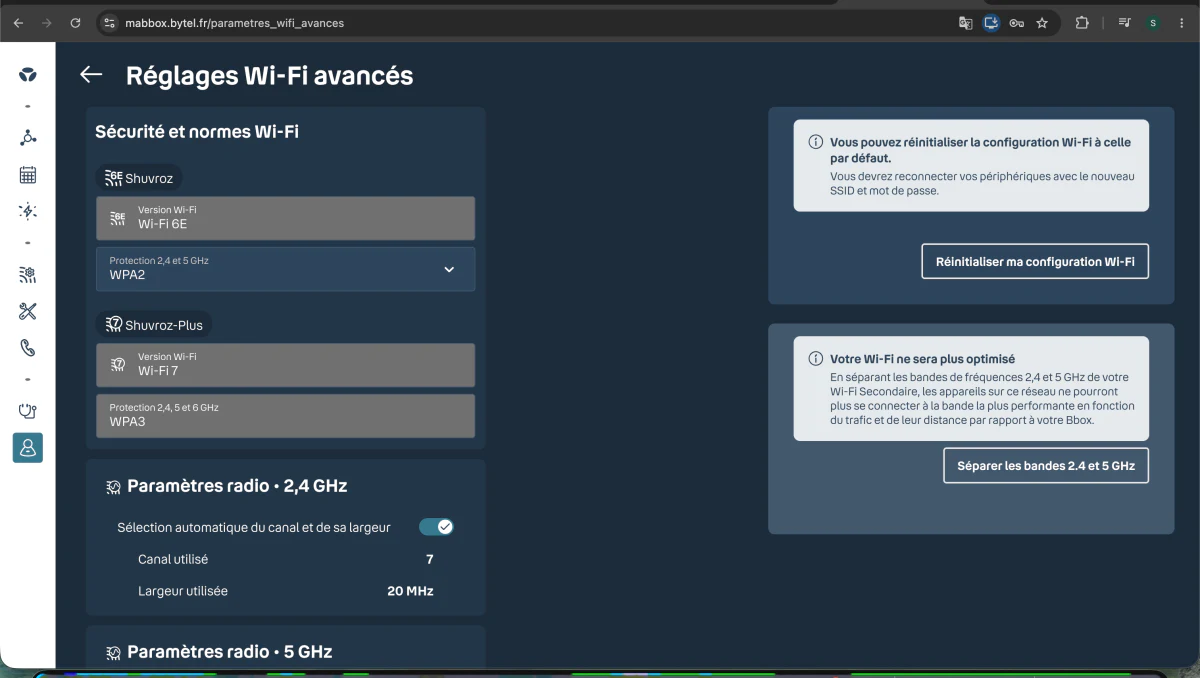
Most recent routers (Bbox, Livebox, Freebox and similar) now offer two separate networks: a main one on Wi-Fi 6E protected by WPA2, and a second, faster one on Wi-Fi 7 protected by WPA3. If your computers, printers and phones are new enough to connect to it, switch everything to WPA3: it's the strongest encryption available in 2026, and it fixes several known weaknesses of WPA2. If part of your equipment is older, keep WPA2 in AES mode (never TKIP) for those devices, isolating them on a separate network if needed. The real risk is almost never WPA2 versus WPA3: it's a router installed back in 2019 for a client near Porte de la Muette and never reconfigured since, which was still running WEP last year. WEP encryption can be cracked in a few minutes with a free tool found online. If it still shows up in your settings, change it today, not next week.
A Wi-Fi passphrase that actually holds up
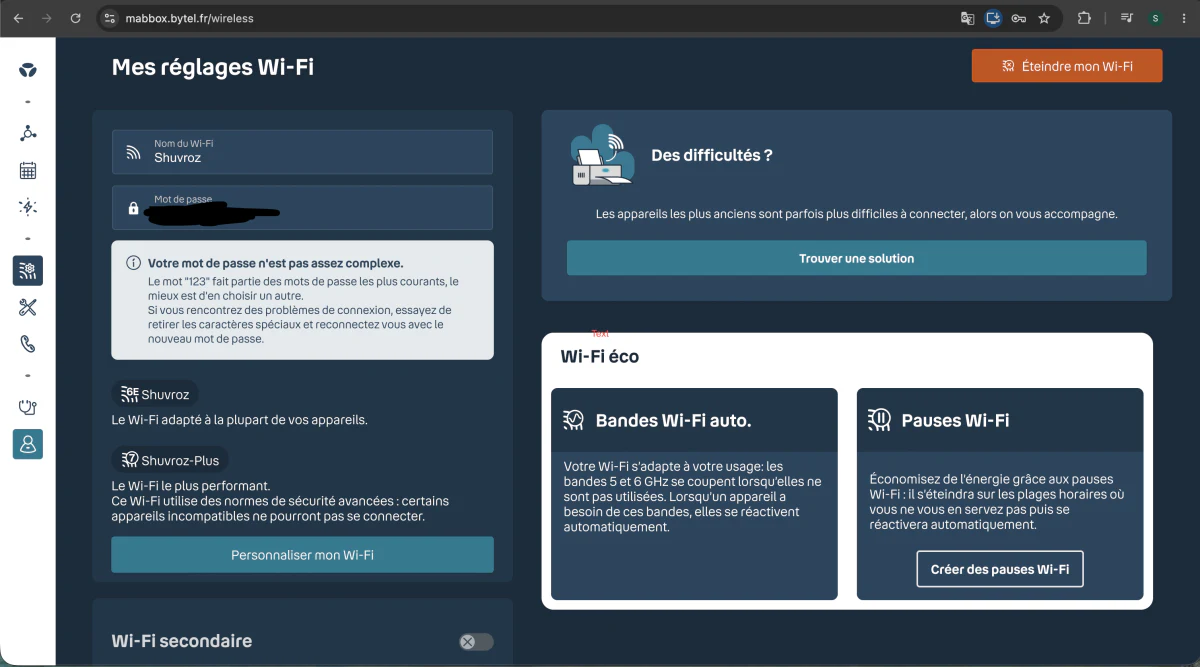
I've come across business Wi-Fi passwords that were just the company name followed by "123", and the router's own interface sometimes calls it out in plain text, as shown in the screenshot above. A password like that falls to a dictionary attack in seconds. Aim for at least 16 characters, avoiding anything tied to the business, its address or the owner's name. The method that works best in practice: four unrelated words strung together with a couple of numbers, something like coffee-cactus-42-lamp. It's hard to guess, easy to remember, and far quicker to type on a phone keyboard than a random string of symbols. Change it whenever you're no longer sure who has it, when an employee leaves, or after a one-off contractor visit needed it.
Guest network: always separate from the business network
This is the setting small businesses forget most often. A client signing a contract, a delivery driver asking for the Wi-Fi, a one-day intern: none of them have any reason to sit on the same network as your servers, your networked printer or your accounting machines. Nearly every consumer router offers a "secondary" or "guest" Wi-Fi option that isolates these connections from the rest of the network, with its own password. Turn it on, give it a name clearly different from the main network, and never hand out the business network's password to a visitor. For a three-person practice near the Champs-Élysées that I set up this spring, that single change, paired with a properly configured Wi-Fi 7 router, settled half the owner's worries about network security on its own.
Change the router's admin login
The Wi-Fi password protects device connections. The admin username and password protect something else entirely: access to the whole configuration, encryption, guest network, port forwarding, all of it. Many routers bought separately (not from an ISP) ship with admin/admin or admin/password out of the box, a combination known to everyone and tested automatically by scripts that crawl the web around the clock. Change these credentials the moment you install the device, using a password different from the Wi-Fi one. On an ISP-supplied router, admin access is usually managed through an online customer account: check that account itself has a strong password and, where available, two-factor authentication turned on.
Firmware updates, the chore everyone puts off
ISP routers (Bbox, Livebox, Freebox) update themselves automatically in the vast majority of cases, nothing to do on your end. It's different for a router or access point bought separately, installed for example to cover an open-plan office or a basement with weak signal: those need a manual check, typically once a quarter, from their own admin interface. Old firmware can carry known, documented, exploitable security flaws that the manufacturer fixed months ago. I sorted this out in ten minutes for a client near Trocadéro who was still running a router on three-year-old firmware: the update alone closed two known vulnerabilities.
Should you hide the SSID? Busting a persistent myth
Plenty of business owners assume an invisible network is a protected one. It isn't. Hiding the Wi-Fi name (the SSID) doesn't make it undetectable: any free frequency-scanning tool still spots it within seconds. In practice, this setting mostly makes life harder for your own staff, who have to type the network name by hand instead of picking it from a list, and it can even make the connection unstable on some Android devices and smart gadgets. Leave the SSID visible, give it a neutral name that doesn't advertise your line of business or address, and put your effort into the password and encryption, which are what actually protect you.
MAC filtering: a protection not to overrate
MAC filtering only allows devices whose hardware ID you've registered in advance. On paper, that sounds appealing. In practice, that address is broadcast in the clear the moment a device connects, and it can be spoofed in a few clicks with free software available everywhere. MAC filtering will slow down a curious visitor who doesn't really know what they're doing, but it will never stop someone genuinely intent on getting onto your network. Use it if you like, as an extra layer for a small, fixed setup where the device list rarely changes, but never rely on it as your main protection: the real work happens in encryption, the passphrase and network separation.
Checking who is actually connected to your network
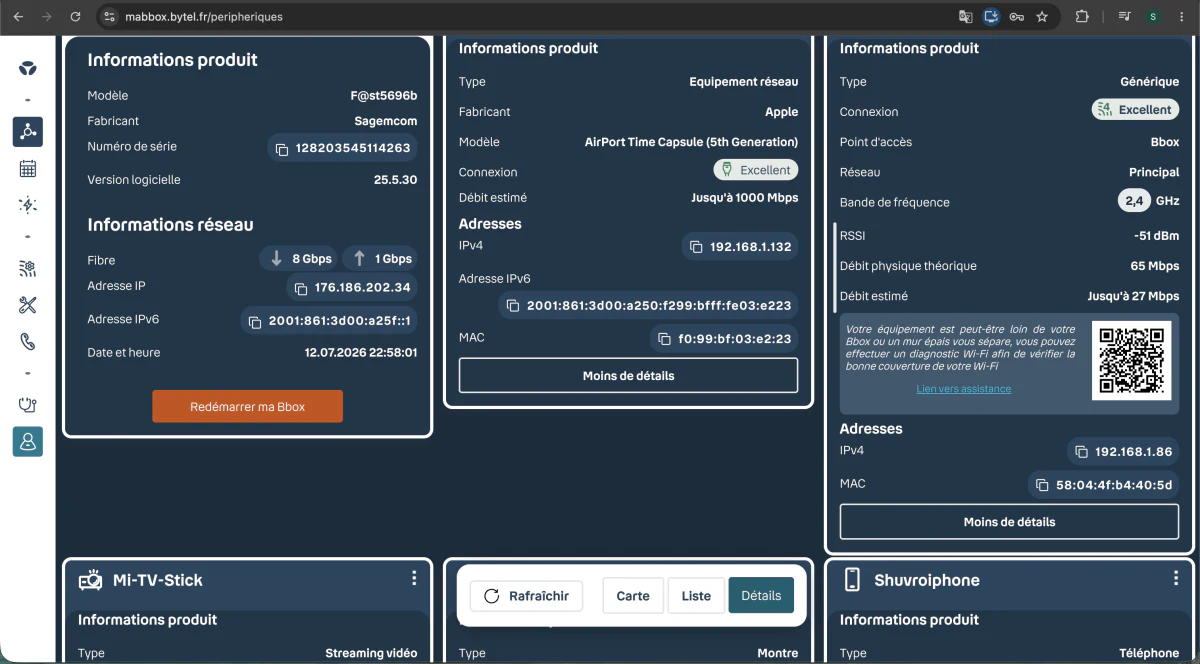
About once a month, take five minutes to open your router's interface and look at the list of connected devices, as shown above: each line shows a name, an IP address and a MAC address. Compare it against what you actually own: computers, phones, printer, maybe a camera or a streaming box. A device nobody recognises, especially on the main network rather than the guest one, should be blocked immediately from that same interface, followed by a Wi-Fi password change. A freelance designer working near Bastille called me last year after spotting a device on that list she didn't own: it turned out to be an old tablet from a former collaborator, never removed from the network. Nothing malicious that time, but checking was the right instinct.
Private or public network: the setting Windows and macOS users forget
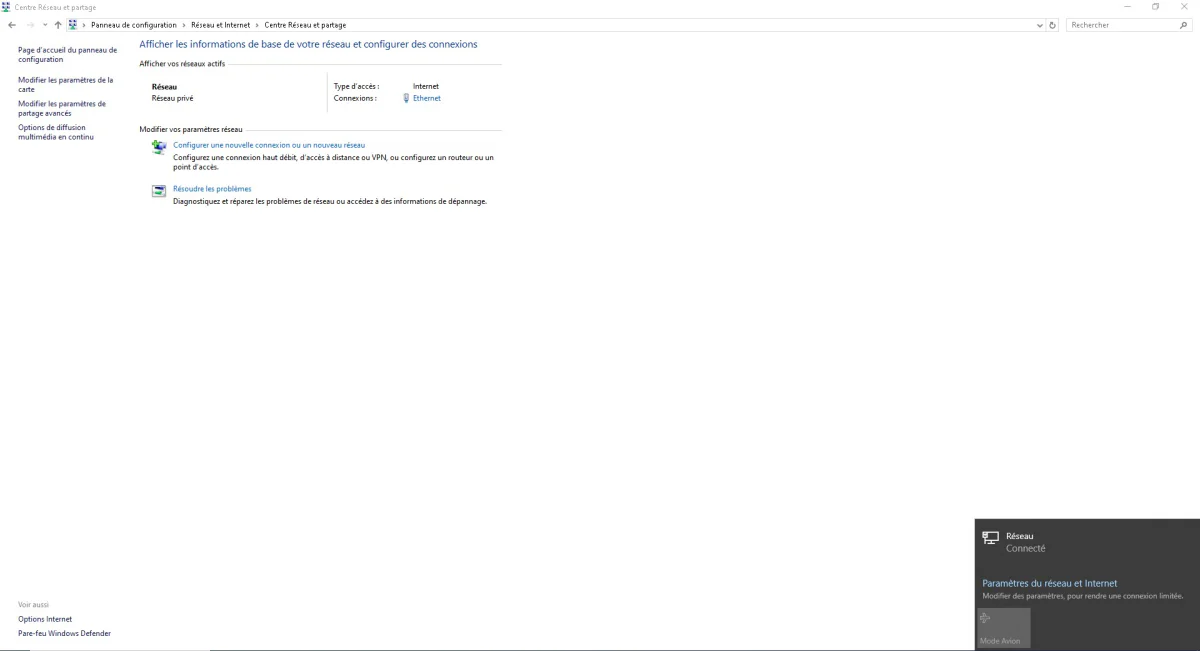
Beyond the router itself, every computer that joins your Wi-Fi picks a network profile, as shown in the screen above. On a network marked "public", Windows and macOS block network discovery and file sharing as a precaution, which makes sense in a café but gets in the way at the office. On a network marked "private", those protections relax to allow sharing between machines. The classic mistake: a laptop set to private on the office Wi-Fi, then carried unchanged into a café or an airport, where it keeps exposing its shared folders to everyone else on that public network. Check this setting on every laptop that travels, and switch it back to public the moment the device leaves your premises.
When to bring in a professional
For a single room and a handful of devices, the settings above are a DIY job. The calculation changes once several offices or floors need coverage, a networked printer has to stay reachable from every desk without exposing the rest of the network, or a client asks for written proof of your security measures before signing a contract. A properly planned Wi-Fi and printer setup in Paris from the start saves months of patchwork later. And if Wi-Fi is only the visible part of a bigger problem, backups, ageing machines, no password policy, a full small business IT maintenance visit in Paris usually sorts everything out in one session. For a home office or a freelancer working from their apartment, the same work happens as part of a home visit IT support in Paris.
Frequently asked questions about business Wi-Fi security
WPA2 or WPA3, which should I choose for my business Wi-Fi?
Choose WPA3 if your router and your devices support it: it is the strongest encryption available today. Otherwise, WPA2 (AES) is still fine in 2026. The real danger is an old WEP or WPA mode still active on a router nobody has reconfigured since it was installed.
Should I hide the SSID of my business Wi-Fi?
No, hiding the network name doesn't add real security: software that scans for frequencies still detects it, and it makes life harder when connecting your own devices and visitors. A strong passphrase and the right encryption protocol protect far more.
Is MAC filtering enough to secure a business network?
No. MAC filtering slows down a non-technical visitor, but a MAC address is broadcast in the clear over the network and is easy to spoof with a free tool. Use it as an extra layer if you like, never as your only protection.
How do I know if someone is connected to my Wi-Fi without permission?
Open your router's admin interface and check the list of connected devices: each entry shows a name, an IP address and a MAC address. A device you don't recognise, once compared against your actual phones, computers and smart devices, should raise a flag.
Want a full Wi-Fi security check for your office or business in Paris? Call or message me at 07 66 84 52 57, by phone or WhatsApp. I come on site to check your router's configuration, properly separate the guest network and fix whatever needs fixing, no unnecessary jargon.