A good half of the call-outs I do in Paris start with a machine that has not taken a single update in months, sometimes years. Nobody did it on purpose: the restart prompt showed up at a bad moment, got dismissed, and eventually people just click through it without reading. The problem is that every skipped update is a door left open a little longer. Before we talk about new features or speed, the real reason to keep a computer updated is security: Windows, macOS and Office patches close holes that are already known, and some get exploited within days of the patch going public. Here is how I actually handle it, device by device, without losing an evening to it.
Security first, new features second
Microsoft, Apple and other vendors ship a batch of fixes every month that close vulnerabilities already made public. Once a patch is out, anyone can diff the old and new code to work out exactly which hole was closed, and use that against machines that have not installed it yet. This matters even more for computers still running an operating system past end of support: if that is your situation, I covered the exact steps in my Windows 10 end-of-support article, so I will not repeat it here. This guide assumes your system is still supported and just needs to be kept properly current.
Windows Update, step by step

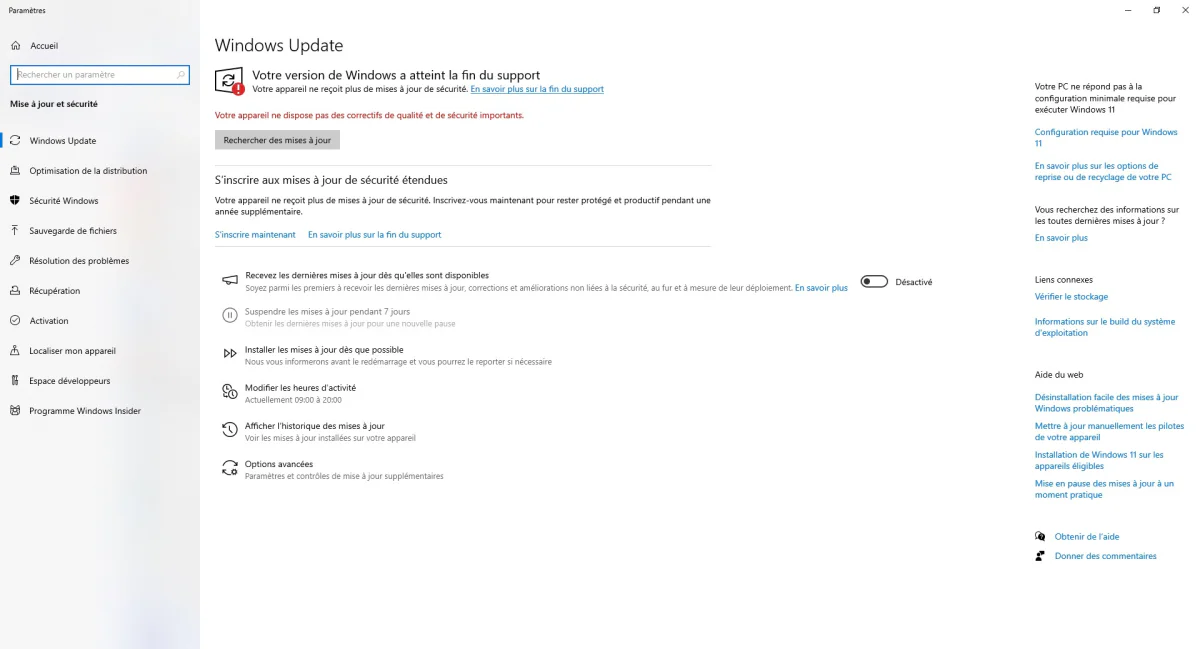
On Windows, everything happens in Settings, then Windows Update. The "Check for updates" button runs the check; if it finds something, let it download and install, then restart when the machine offers to rather than leaving it half-done for three days. In the screenshot above, this PC reports it has reached end of support and offers to enrol in extended security updates: a paid Microsoft option that extends security patches for one more year, useful as a stopgap while a replacement gets organised, but not a long-term fix. The "Get the latest updates as soon as they're available" toggle can safely stay off; it only covers non-security features, not patches. What you should never do is pause updates for weeks on end: seven days of pause is reasonable, no more, and only right before something important.
macOS updates
On a Mac, it is in System Settings, then General, then Software Update. macOS usually downloads security updates by itself in the background and only asks for a restart to finish installing them; if your Mac has not restarted in a month, there is a decent chance one is quietly waiting. App Store apps update from the App Store itself, under the Updates tab. For the MacBooks I see with freelancers around the 16th or 8th arrondissement, the usual issue is not forgetfulness but fear that a big macOS update will break a work app: in that case, check the app's compatibility before confirming the update, rather than turning updates off altogether.
Keeping Office and Microsoft 365 current
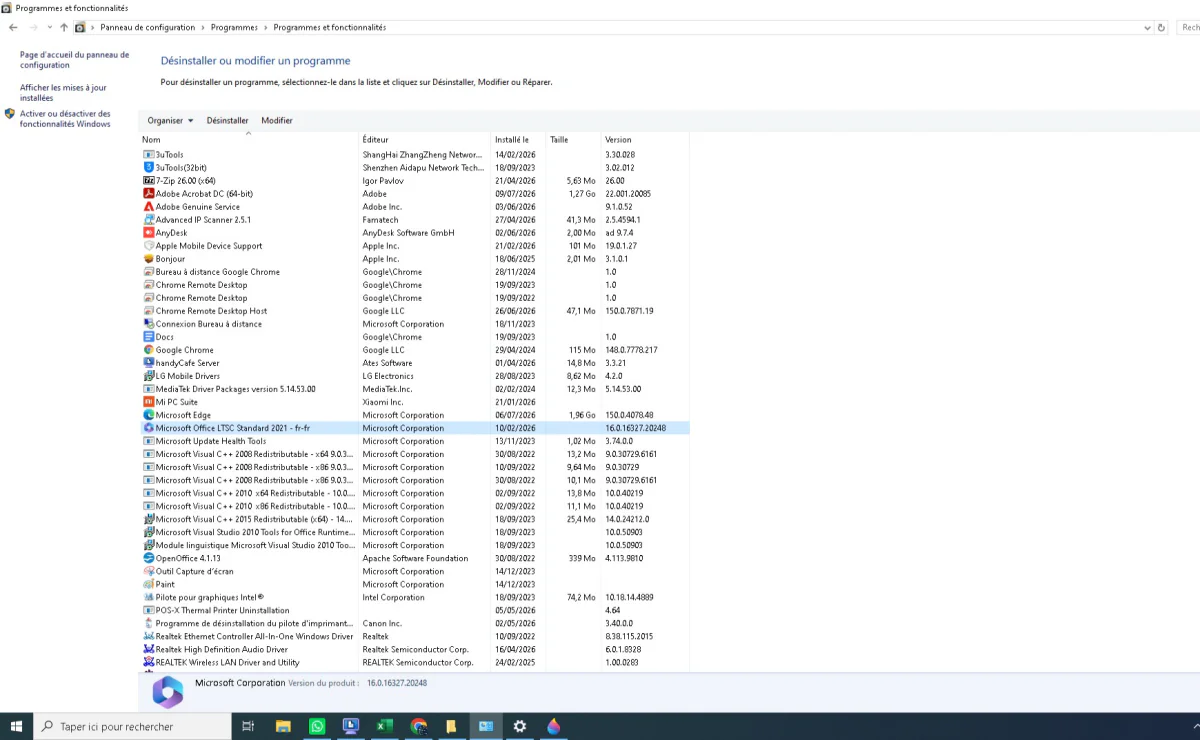
Word, Excel and Outlook mostly update themselves, but it is worth checking once in a while under File, then Account, then Update Options, Update Now. That matters because a good share of email-borne security exploits arrive through a booby-trapped Office document opened with an outdated version. For freelancers and small businesses juggling several Microsoft 365 licences, things get complicated fast past two or three seats: between per-user licences, shared mailboxes and OneDrive that occasionally refuses to sync after a Windows update, this is where I spend most of my time doing Microsoft 365 support in Paris. The screenshot above is the exact check I run after reinstalling a machine: confirm Office is back and active before handing the computer back.
Device Manager: when to touch it, when not to

Device Manager (right-click the Start menu, or search "device manager") lists every piece of hardware Windows recognises: network cards, USB controllers, drives, processors. The rule I give clients is simple: only touch it if a yellow warning triangle shows up on a line, or a specific device stops working, like a printer or a Wi-Fi card. In that case, update the driver from the manufacturer's own site, not from some random "driver updater" tool: those install generic drivers that cause more crashes than they fix, and it is the single most common cause of breakdowns I end up repairing after someone else's visit. In the screenshot above, taken on a machine running an Intel Core i5-4570S with four cores, nothing is flagged yellow: everything works, so I leave it alone, even though the machine is over ten years old. Updating a driver nobody asked to update is the fastest way to turn a working PC into one that will not boot.
A clean Windows reinstall as a reset: a real client case

That same i5-4570S machine belonged to a small outfit that had used it as a shared workstation for years. Listing the installed software before touching anything, I counted three different remote-desktop tools installed side by side, an IP scanner, and a good ten Microsoft components nobody had cleaned out since 2019. Nothing outright infected, just a typical build-up: every technician who had passed through had added their own tool without removing the previous one's. The result was a PC that took nearly four minutes to boot and crashed roughly once a week. Rather than uninstalling piece by piece, I proposed a clean reinstall: full backup of documents and login details to an external drive, a check that the backup actually worked, then a fresh Windows install from a USB stick. That installer boot screen above is what was scrolling on the monitor for the first ten minutes. Network and graphics drivers come next, then Office gets reinstalled (confirmed in the screenshot further up), then the backed-up files go back in place. Budget two and a half to four hours depending on how much data there is, for around €140 in Paris, backup included for a reasonably sized drive. That PC now boots in under thirty seconds and has not crashed since. I run this kind of job at home or at the office; it is part of what I offer under home IT support for individuals and small teams alike.
Automating updates so you stop thinking about it
The best update is the one you never had to do yourself. On Windows, set active hours in Windows Update that actually match your real working schedule, so automatic restarts never land in the middle of a video call. On a Mac, turn on "Update macOS automatically" in System Settings. Browsers like Chrome or Edge already update themselves on restart, no setting needed. For a business running several machines, managing this device by device quickly becomes unmanageable: that is exactly what I take off people's plate with small-business IT maintenance contracts, with centralised tracking instead of a reminder email once a quarter. A fleet nobody keeps an eye on always ends up looking like the PC described above, years behind all at once — and that is often the real explanation behind an unexplained slow computer, too.
Before a major update, back up first
Monthly security updates are safe and I always recommend installing them without hesitation. Major updates, though, like moving from Windows 10 to Windows 11 or jumping to a new macOS version, deserve a backup beforehand, even if they go fine nine times out of ten. The tenth time it is an incompatible graphics driver, a user profile that will not load, or a work app that refuses to start afterward. Copying your documents to an external drive or OneDrive before clicking "install now" takes ten minutes and avoids situations that take a lot longer to undo. This is not excessive caution, it is simply the habit I recommend to every client before any update that changes a major version rather than just patching one.
FAQ
Do I really need to install every Windows update?
Yes for security updates: they fix vulnerabilities that are already publicly known, and sometimes already being exploited. Feature updates can wait a few days so the first bug-fix patches land, but never postpone them for months.
My Windows update is stuck, what should I do?
Check available disk space and the internet connection first, then run the Windows Update troubleshooter in Settings. If it stays stuck after a restart, a technician can reset the update components without touching your files.
Should I update every driver listed in Device Manager?
No. Only touch a driver if a yellow warning icon flags a real problem or a specific device stops working. Updating drivers that are already working, especially through third-party software, is the most common cause of the breakdowns I fix after someone else's badly done job.
Does a full Windows reinstall delete my files?
A clean install wipes the system drive, so yes without a prior backup. That is exactly why I always back up documents, photos and login details before starting a reinstall, and check the backup before I begin.