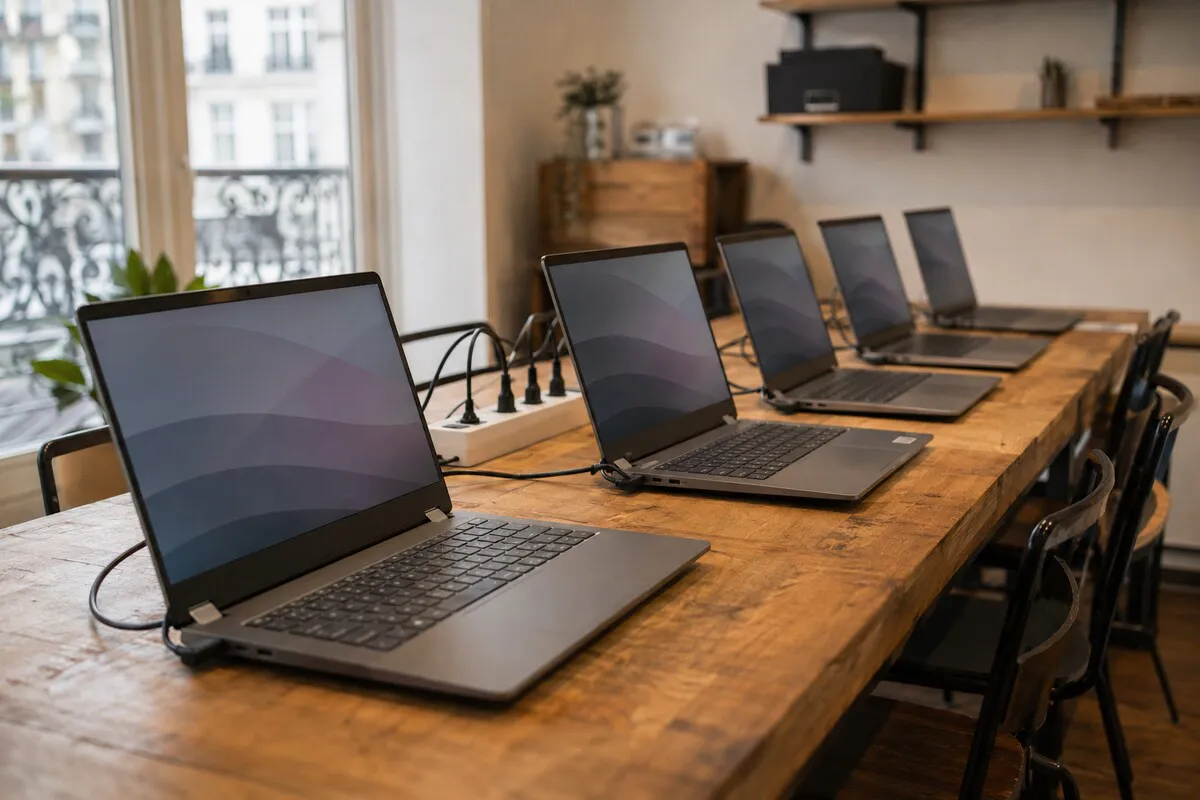
A business owner called me this summer about what sounded like a simple problem: one of her eleven machines wouldn't boot. Digging a bit further, we found out she no longer knew which employee used which computer, that no warranty had been logged anywhere, and that two former employees still had access to the shared Drive six months after leaving. The broken machine, I fixed in an hour. The rest took a full day.
That's the most common scenario I see at small businesses with 5 to 30 devices in Paris: no IT department, just computers bought one at a time as needed. The good news is that at this size, you don't need enterprise-grade tooling, just discipline and three or four simple habits, kept up over time.
An inventory that survives past month three
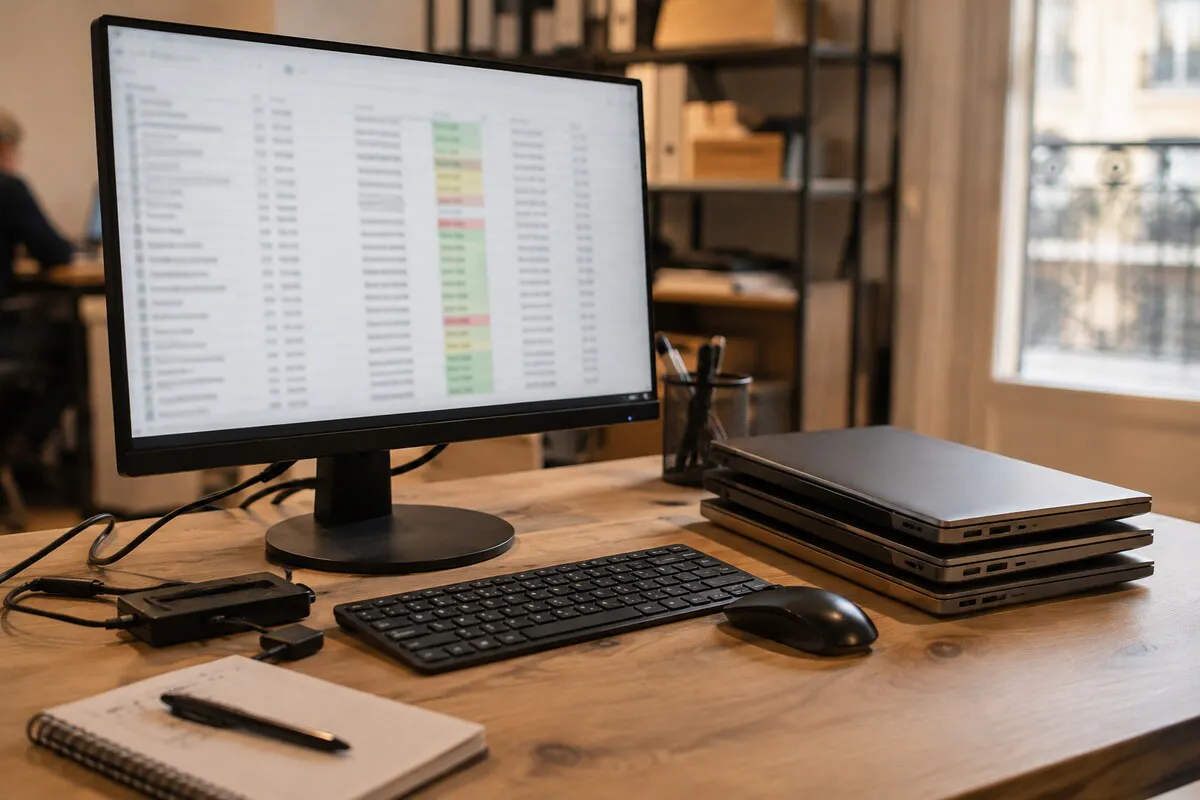
The first, and most commonly skipped, habit is the inventory. Not a one-off audit done once and forgotten, but a living document, updated with every purchase, breakdown or departure. At this scale, a shared spreadsheet (Google Sheets, or Excel on SharePoint if you're already on Microsoft 365) does the job perfectly — no dedicated fleet management software needed for eleven or twenty machines.
What I recommend logging, column by column: machine name (a short identifier, not "Julie's laptop"), serial number, assigned user, purchase date, warranty end date, OS version, and licences with their renewal dates. Nothing more is really necessary below thirty devices. What kills an inventory isn't its format, it's the lack of a clear owner: assign one person responsible for keeping it current, or it'll be accurate the day it's created and never again after that.
Fewer models, roughly half the support time
I have a client in Paris who bought, over three years, four different laptop models across three brands: two Dells, one HP, one Lenovo, each with its own charger, its own dock and its own quirks on startup. The result: every breakdown meant relearning the machine, and no spare charger ever fit another laptop.
Standardising on one or two laptop models plus a reference desktop configuration changes support time in a very concrete way. Same drivers, same troubleshooting steps, interchangeable peripherals, and colleagues who can actually help each other because they know the same machine: on my callouts, this roughly halves the time spent per ticket. Set a simple rule for future purchases — a business laptop around €800 to €1,200 built to last three to four years, bought again in the same or nearest available model — and stick to it.
Onboarding and offboarding: the checklist that's only ever half done
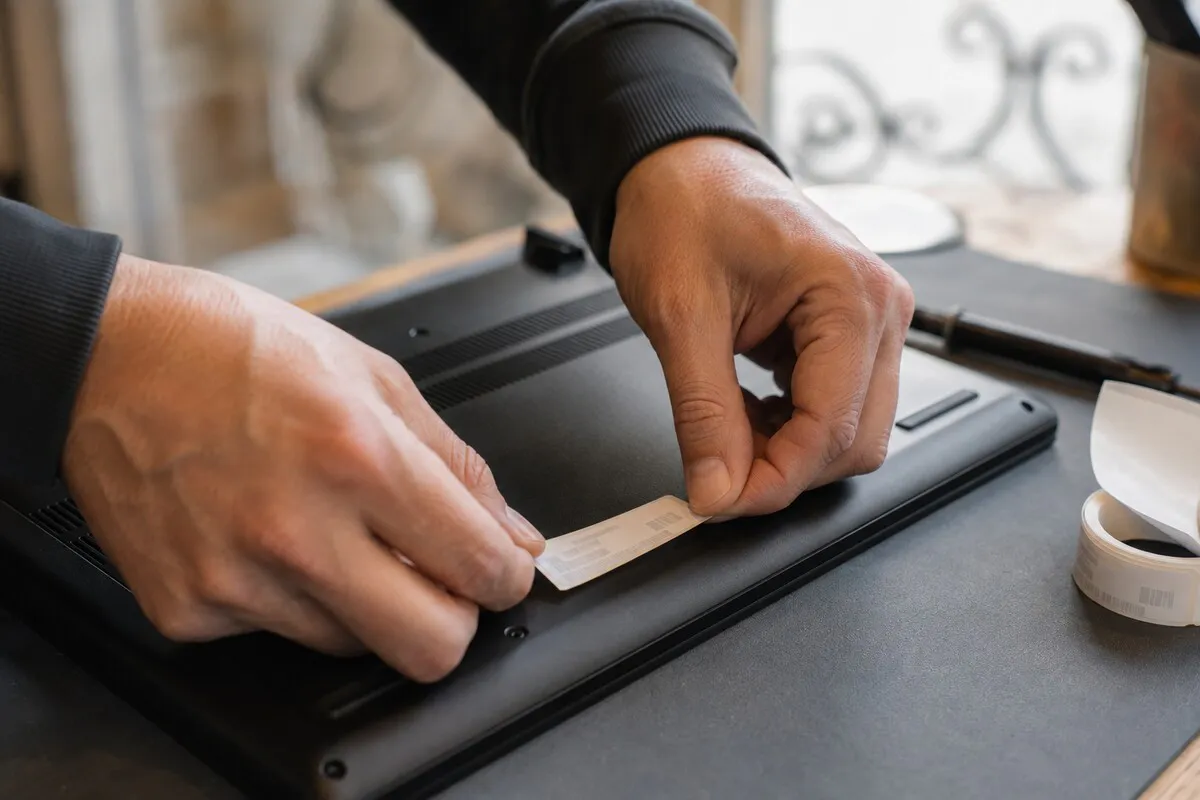
A new hire usually gets some kind of checklist, even an informal one: create the account, assign the needed licences, turn on disk encryption (BitLocker on Windows, FileVault on macOS), set up email, add the machine to the backup, and get a signed hardware handover form. That's the easy half, because it has an obvious deadline: the first day of work.
The departure side almost never has as clear a deadline, and that's exactly where it falls apart. On the morning someone leaves the business, cut access before even collecting the laptop: email account, VPN, shared folders, business apps, shared passwords. Physical hardware can safely wait a day or two. What I see too often is the reverse: the laptop gets carefully collected on departure day, while the account stays active for weeks. That's exactly what I found at the business mentioned above, and it's a real security hole: any disgruntled ex-employee is a door left open onto your data.
Keeping updates consistent across the whole fleet
Without a central deployment tool, the temptation is to let everyone update their own machine "whenever they get to it". The problem is the drift that sets in: one machine still on an older Windows version while the others have moved on, a patch applied to eight machines and forgotten on the last three. I cover the full method in my guide on keeping your computer properly updated, but the core habit is simple: pick a fixed day each month (Microsoft's Patch Tuesday is a natural anchor) when someone checks, machine by machine, that important updates have gone through. A shared calendar reminder does the job at this size — no need for a WSUS server to manage twenty machines.
The threshold where Microsoft 365 Business Premium pays off
Below roughly fifteen devices, manual management — a spreadsheet, updates on a calendar, a shared password manager like Bitwarden — stays plenty sufficient, and costs far less than a fleet management tool. That calculation shifts from around 15 to 20 devices, or as soon as part of the team works remotely or moves between sites often.
That's where Microsoft 365 Business Premium, with Intune and Entra ID, starts to earn its price — around €22 per user per month in Paris in 2026, versus €12.50 for the Standard tier. Intune pushes a mandatory encryption policy to every machine, wipes a lost or stolen laptop remotely, and checks each device meets a minimum security bar before it connects to company data. Entra ID adds single sign-on and enforced two-factor authentication across every account, without each person configuring it themselves. Above that threshold, these pieces prevent real incidents — I once had a client lose an unencrypted laptop with client data on it on the RER, a non-event with remote wipe turned on. I set up these pieces through my Microsoft 365 support in Paris, and I've written a setup guide on Microsoft 365 configuration for small businesses.
Shared devices vs. personal devices: different rules apply
A front-desk computer, a shared workshop machine or a counter tablet doesn't belong to any one person, and that's exactly the problem if you treat it like an assigned device. Set up a dedicated generic account, with no access to individual mailboxes, and deliberately limited permissions. In my experience, these shared machines are statistically the ones with the most software installed "just to try it out" and the most passwords saved in the browser by several people.
By contrast, a device assigned to a named employee should stay clearly identifiable as such in the inventory: that person reports a fault, returns the machine on departure, and has their account cut first. Mixing the two logics complicates everything from backups to offboarding.
FAQ
Is a spreadsheet enough to manage a fleet of 20 machines?
Yes, as long as one person owns it and updates it at every purchase, breakdown or departure. Below roughly thirty machines, a shared spreadsheet is usually more reliable than a complex tool nobody actually keeps up to date.
What should be the first thing done when an employee leaves?
Revoke access before collecting the hardware: email, VPN, shared drives and any shared passwords. The physical device can wait a day or two; an active account after departure cannot.
From how many devices does Microsoft 365 Business Premium pay off?
The threshold usually sits around 15 to 20 devices, or as soon as part of the team works remotely or moves between sites often. Below that, a tracking spreadsheet and a shared password manager are enough.
Is it better to replace the whole fleet at once or in stages?
In stages. Replacing a third of the fleet each year smooths the budget and avoids a third of the machines failing in the same week, years after a bulk purchase.
Planning renewals in rolling thirds instead of all at once
Many small businesses buy their whole fleet in a single wave — often when the company launches — and then find themselves, four or five years later, with every machine aging and breaking down at roughly the same time. That's the worst possible moment to replace them: the budget absorbs the entire cost at once, and productivity stalls while everyone gets a new machine the same week.
The method I recommend, for a fleet of 15 devices: split it into three groups of about five machines, and replace one group per year on a three-year cycle. With business laptops running €900-1,200 each in 2026, that's an annual budget of €4,500 to €6,000 rather than a €15,000 bill every three or four years. The most natural groups are the ones already bought together, but nothing stops you splitting deliberately by usage instead — travelling sales staff first, fixed desk machines last.
What I'd recommend
Start small: an up-to-date spreadsheet, one or two reference models for future purchases, and an offboarding checklist posted somewhere, even a basic one. If you'd rather have someone handle this for you, my IT maintenance for small businesses in Paris covers exactly this kind of follow-up, and I explain in my article on the IT maintenance contract from how many devices it starts paying off. For any other question, my small business IT support in Paris is the best place to start.