A computer that restarts by itself comes up in my calls almost every week in Paris, and there's never an obvious answer over the phone. The same symptom can point to seven very different causes: Windows finishing an update, a fan clogged with dust, a tired power supply, a failing RAM module, a dying disk, a crashing driver, or malware. I follow the same steps on every job, in the same order, starting with whatever costs nothing to check. Here's that order, along with what you can test yourself and what genuinely needs a bench.

Rule out the free one first: Windows Update
Before taking anything apart, rule out the dumbest and most common cause: Windows restarting on its own to finish an update. It tends to happen overnight or after a period of inactivity, with no obvious warning. Open Settings, then Windows Update, and check the update history: a recent install at the time of the restart confirms it instantly, without opening the case. To stop it happening again without blocking security updates, I cover the right settings in my guide on keeping your computer updated without surprises. Nothing at the time of the restart? Move on.
Overheating: dust, fans, thermal paste, and a Paris summer under the roof
Overheating has a fairly recognisable pattern: the restart happens after twenty minutes to an hour of sustained use — gaming, video editing, rendering — never on a cold boot, and it's often preceded by fan noise ramping up hard just before the shutdown. In summer, under the roof or on a top floor with no air conditioning, that pattern gets noticeably worse: a computer that ran fine all year suddenly starts crashing in late June once the room hits 30°C in the afternoon. A client in the 20th, right under the roof, called me in early July because his computer kept restarting every twenty minutes mid-game — 92°C on the processor, the internal fan nearly clogged with dust.
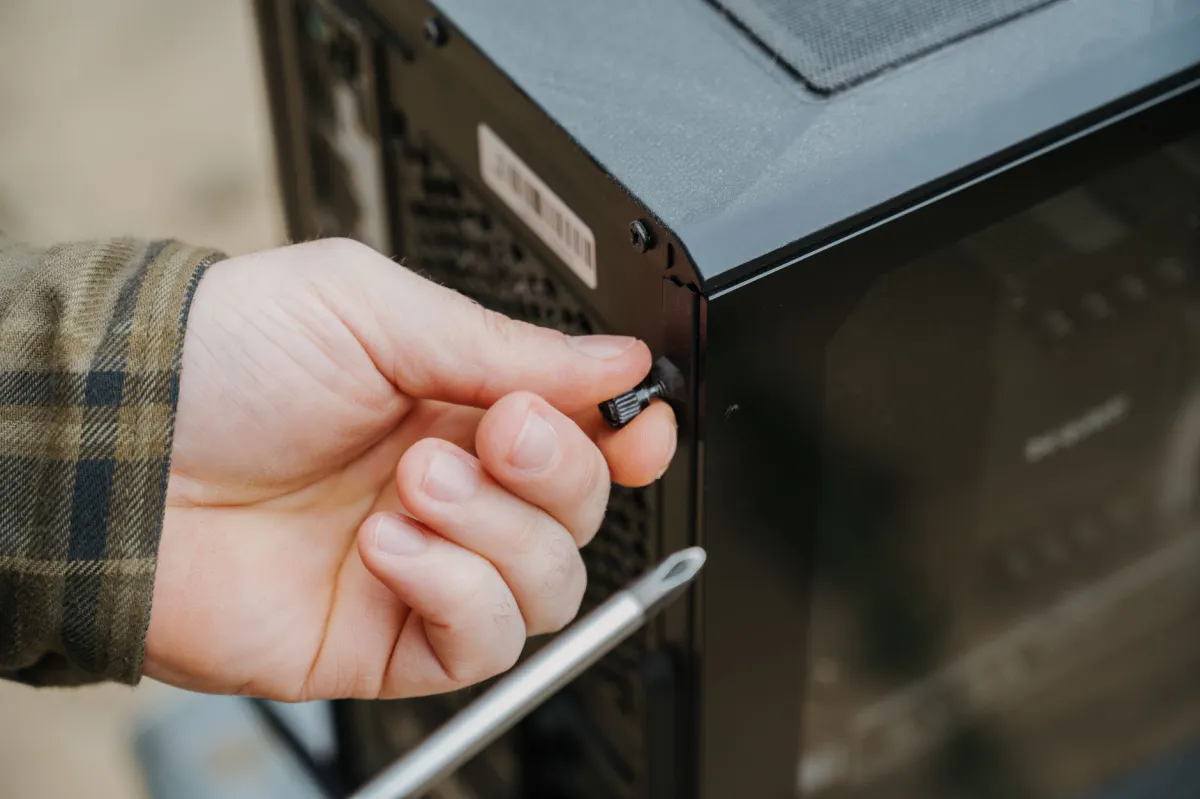
On your own, power off and unplug the machine, open the case, and check whether the intake grilles and the cooler fins are visibly loaded with grey dust — a can of compressed air, held at a distance, clears most of it. A fan that isn't spinning at all, or spinning very slowly, is also a clear sign. What needs a bench visit: redoing dried-out thermal paste — the single most underrated cause on any computer over four or five years old — and measuring actual temperatures under load to confirm it's really heat tripping the protective shutdown.
A failing power supply: the most common cause on an older desktop
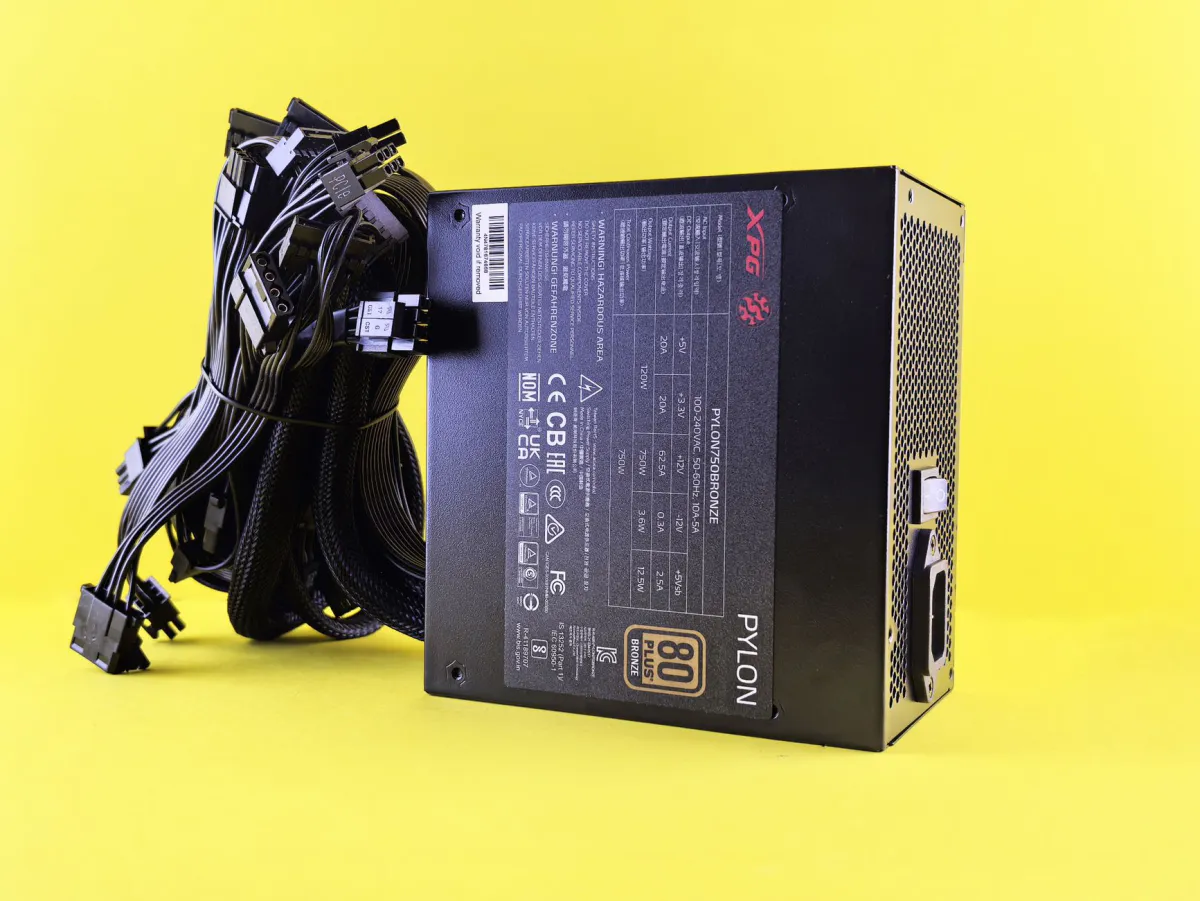
On desktop towers over five or six years old, a failing power supply is statistically the number-one cause of unexpected restarts, well ahead of the motherboard. The pattern differs clearly from overheating: the restart happens at the exact moment of a sudden load spike — launching a game, plugging in an external hard drive, powering on a printer — rather than after a long temperature climb, and it can strike right at cold power-on. An aging PSU loses its ability to deliver stable current under a sudden demand spike, even with fans spinning normally.
On a 2019 desktop belonging to a client in the 15th, the restart happened every time he plugged in his external hard drive, never otherwise. A test power supply confirmed the diagnosis in ten minutes. On your own, check whether the problem always coincides with the same action, and confirm the internal power cables are seated properly if you're comfortable opening the case. A reliable diagnosis needs a PSU tester or a known-good replacement unit: the test I run first on an old desktop restarting with no obvious pattern.
RAM at fault: running the Windows memory test
A failing RAM module produces restarts that look more erratic than the two causes above — no clear link to load or heat, sometimes a blue screen right before, sometimes nothing at all. Run the tool built into Windows yourself: type "Windows Memory Diagnostic" into search, choose to restart now and check for problems. Budget about ten minutes; the computer restarts on its own and shows the result after you log back in.
A "no problems detected" result doesn't fully close the case: the Windows test is accurate for outright faults but less thorough than MemTest86, the tool I use on the bench when doubt lingers, running several passes over a few hours. On a machine with multiple sticks, bench testing also lets me isolate the faulty module individually, hard to do cleanly at home without risking an unlucky static discharge.
A disk showing signs of dying
A hard drive or SSD on its way out tends to trigger restarts preceded by other symptoms: sudden slowness opening files, unreadable folders, clicking noises on a mechanical drive. Check the disk's SMART status yourself with a free tool like CrystalDiskInfo, which shows a "good", "caution" or "bad" status within seconds — an orange or red status is worth taking seriously even if the computer still seems to work normally otherwise.
What needs a bench visit: cloning the disk before it fails completely, then a clean swap to a new system disk without reinstalling everything. If the disk has already died before any backup was made, data recovery is often still possible, but the odds drop with every additional restart on a disk already failing mechanically — better to shut it down and call.
Blue screens and drivers: what Event Viewer tells you
A crashing driver — graphics, network, or a poorly supported peripheral — often triggers a blue screen followed by an automatic restart, since Windows is set by default to restart on its own after a critical error. Trace these incidents yourself: type "Event Viewer" into search, open Windows Logs then System, and look for red-flagged "Critical" entries at the exact time of the restart. The code following BugCheck often points to a specific .sys file, which identifies the culprit driver.
Reading these logs correctly takes some practice — several entries can appear in the same second without being related to the actual crash. I always cross-reference these logs against the installed hardware before updating or removing a suspect driver, rather than guessing which one to change.
The malware everyone forgets to suspect
An infected computer sometimes restarts to force the install of another piece of malware, or because a hidden process overloads the system until it crashes. It's rarely the first explanation anyone thinks of, but I deliberately place it last, because the six previous causes are statistically more common on a computer showing no other suspicious behaviour: pop-up ads, general slowdown, a changed browser homepage. Those signs present too? Head to my guide on removing a virus from your computer, with the scan-and-quarantine method step by step.

Paris repair pricing in 2026
A remote or on-site diagnosis runs €39 to €59. A full case clean-out with dust removal and fresh thermal paste is priced €59 to €79. Replacing a failing power supply, parts and labour included, runs €89 to €159 depending on wattage. RAM testing and replacement runs €49 to €89 in labour, plus the module. Cloning and replacing a dying disk costs €99 to €180 depending on capacity and type. A driver fix typically runs €49 to €79, a full malware clean-up €69 to €89. For a home visit within central Paris, the call-out is included; for a case that needs bench work, computer repair usually turns around within a few days.
When it's not worth repairing anymore
On a computer over seven or eight years old, replacing the power supply and then discovering the motherboard is also at fault ends up costing more than an entry-level new machine, especially if the disk is already showing signs of weakness. I say this plainly to clients when it applies: fixing an aging computer piece by piece has a limit, and going past it stops making economic sense. My guide on deciding whether to repair or replace an old computer covers the thresholds I use to make that call, case by case, rather than a blanket age rule.
Frequently asked questions
Is one single restart something to worry about?
Not necessarily. A single restart is often a Windows update finishing in the background. What should get your attention is repetition: several restarts within the same week, especially following a clear pattern like load or heat.
How do I tell a failing power supply from a dying motherboard?
The power supply gets tested first, since it's the cheapest component to rule out: a known-good replacement unit, run for a few hours, usually settles the question. If the restart continues identically with a new PSU, RAM and disk both healthy, the motherboard becomes the remaining suspect, and that needs a bench diagnosis.
Is the Windows memory test reliable?
It correctly catches outright hardware faults, but it's less thorough than MemTest86, the tool used on the bench over several hours. A "no problems detected" result doesn't fully rule out faulty RAM if the doubt persists.
Can a random restart be caused by malware?
Yes, especially with other signs: pop-up ads, general slowdown, a changed browser homepage. Without those signs, malware is still possible but statistically less likely than a hardware fault or a Windows update.