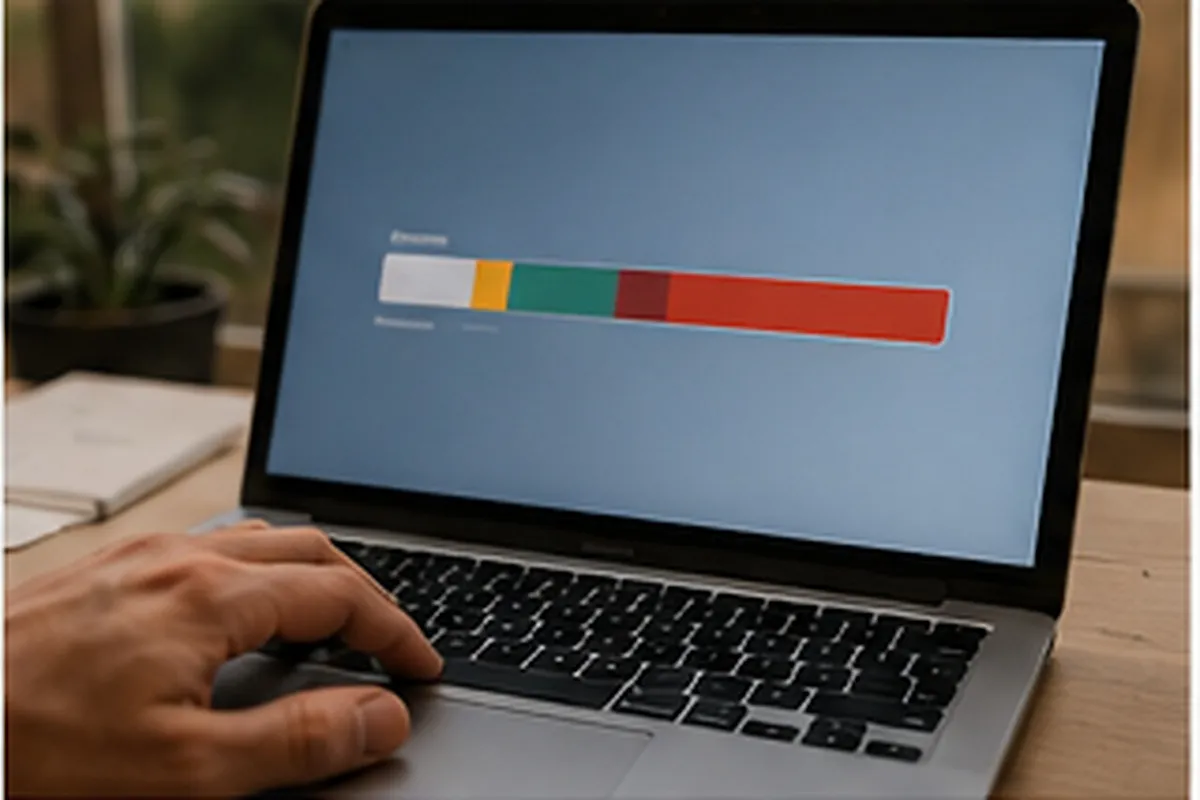
"Not enough disk space" always shows up at the worst moment — usually while a Windows update is refusing to install, or a photo taken on the way back from the metro won't back up. I saw exactly this last week at a client's place near Montrouge: a 256GB SSD sitting at 3GB free for months, with no idea why the machine had become so sluggish. The good news is that in most cases you can recover 20 to 60GB in an hour without losing anything important, as long as you know where to look and where never to touch.
First, see what's actually eating the space
Before deleting anything, look at the real breakdown. On Windows 11, Settings → System → Storage shows a category breakdown (apps, documents, temporary files, updates) and offers guided cleanup. It's a good starting point, but it stays vague about large folders hiding inside Users or AppData. For a clearer picture, a tool like WinDirStat or TreeSize Free draws a visual map of the drive, block by block: big files and folders jump out in seconds instead of clicking through folders blind for an hour.
On a Mac, Apple menu → About This Mac → Storage → Manage gives an equivalent view, with recommendations (empty the trash automatically, reduce clutter) and a category breakdown: Applications, Documents, Photos, System. This is often where people discover a Downloads folder forgotten since 2023 weighing 40GB on its own, or a local mail library that doubled in size from attachments.

What's safe to delete
Once you can see the map of the drive, several categories can be cleared with no downside. Temporary files first: on Windows, the %temp% folder and the built-in Disk Cleanup tool often free 2 to 8GB of leftover installers and app caches. The Downloads folder is next, and it's almost always ignored — it's the first place I check on a client's machine, and it's almost always where the biggest gains are hiding, between .exe installers nobody ever deleted and videos sent through WhatsApp Web.
Old Windows update files add up too: the "Clean up system files" option in Disk Cleanup, or the DISM command with the /StartComponentCleanup flag, shrinks the WinSxS folder by several gigabytes by removing superseded versions already replaced. Finally, duplicate photos pile up fast with automatic phone backups: Google Photos and iCloud Photos each have a built-in duplicate detector, and using it beats hours of manual sorting for an uncertain result.
What you should never touch
This is where I most often get called in after the fact, to fix the damage. On Windows, never manually delete the contents of C:\Windows, the WinSxS folder, or C:\Windows\System32: these are operating system components, and removing them causes errors at best and an unbootable computer at worst. The Program Files folder should only be emptied through an uninstaller, never by deleting subfolders directly. As for AppData (hidden by default inside C:\Users\YourName), only the AppData\Local\Temp subfolder is safe to clear; the rest holds your software's settings and data.
On a Mac, the /System, /Library and /usr folders are protected by macOS itself (System Integrity Protection already blocks most deletions there), but forcing access through Terminal to "make room" is still a bad idea. It's exactly the kind of move that turns a storage problem into a full breakdown, and it's the sort of case that ends up on my desk for data recovery afterward.
Moving some of your files to the cloud
When the drive is full of genuinely useful documents — family photos, invoices, client projects — deletion isn't the answer: moving is. OneDrive, Google Drive and iCloud all offer a mode that keeps files in the cloud and only downloads a local copy when you open them, which frees up space instantly without losing anything. A client in Vincennes I helped in June recovered 90GB just by switching on OneDrive's Files On-Demand for their photo folders.
An external hard drive or USB stick is still a simple way to archive things you rarely open, as long as you keep a second copy elsewhere: a single copy is never a real backup. My guide to backing up important data covers that rule in more detail, so you don't end up with nothing if the external drive itself fails.
When cleanup isn't enough: upgrading to an SSD
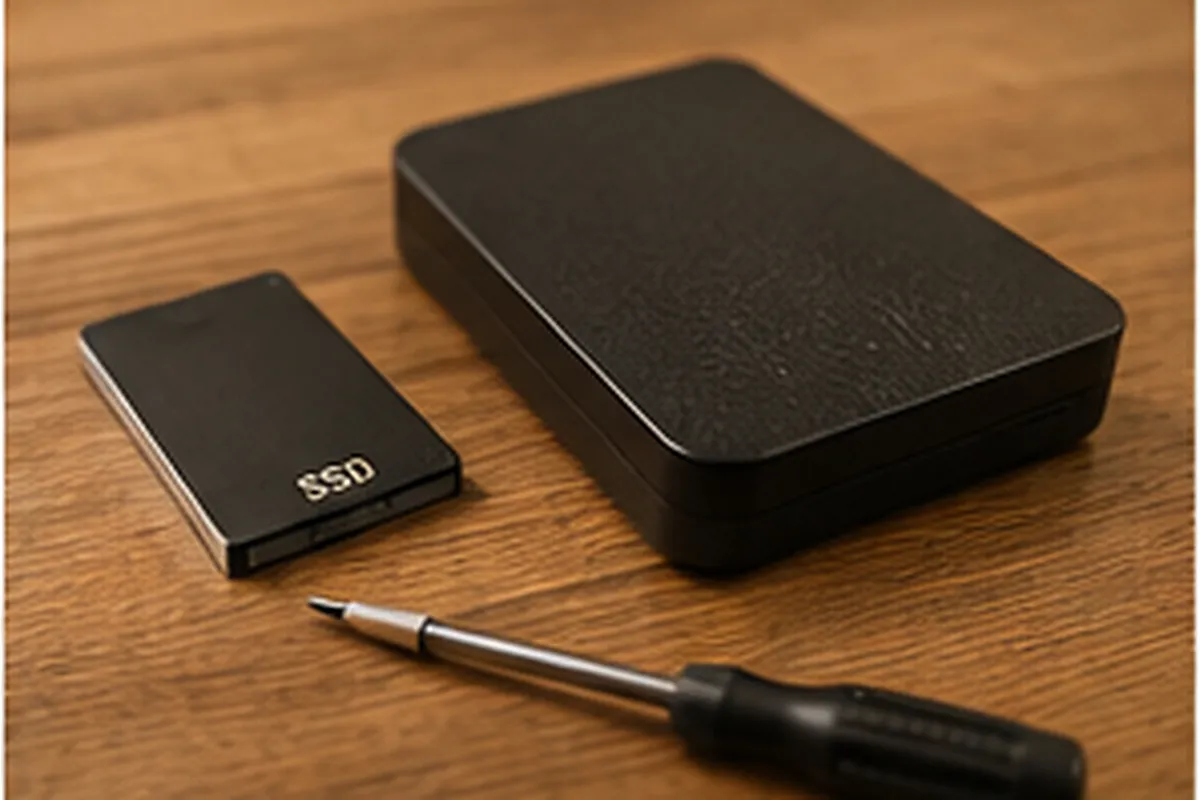
It happens regularly that after a full cleanup, a client only recovers 5 or 10GB on a 128 or 256GB drive already packed with work software or files that can't be compressed any further. At that point, chasing more files to delete is a waste of time — the real answer is more capacity. Replacing an old mechanical hard drive with a larger SSD solves the space problem and the general slowness at the same time, since an SSD reads and writes data noticeably faster than a classic mechanical drive.
On pricing in Paris in 2026, expect roughly €120 to €170 including the part and labour for a 500GB to 1TB SSD on a standard laptop or desktop, with the system and data migrated over so nothing gets lost. On a MacBook with soldered storage, the swap isn't always possible — I always check the model before suggesting anything. I go through the options by machine age, cost and whether the upgrade is actually worth it in my article on repairing vs. replacing an old computer.
Why a full drive makes a computer slow — and risky
An almost-full drive isn't just annoying when you try to save a file. Windows and macOS both need free space for virtual memory, the swap files that step in when RAM runs out; without room to spare, the system crawls through tasks that should be instant. On an SSD, low free space also stops internal drive mechanisms like TRIM and wear levelling from working properly, which speeds up wear and can shorten the drive's lifespan. General slowness has several possible causes beyond a full drive, which I cover in my guide to 7 real causes of a slow computer.
There's also a real data risk: when an update or a program no longer has enough room to write properly, the install can stop halfway through and leave system files or documents corrupted. I've seen a drive sitting at 100% full during a Windows update cause a black screen on the next restart, needing a full data recovery to put things right. It doesn't happen every time, but it's a risk you avoid easily just by keeping some margin.
Habits that keep you from ending up here again
Once the drive is clean, a few simple habits stop the same problem coming back six months later. Empty the trash and the Downloads folder once a month instead of once every two years — five minutes with the tools above is enough. Turn on cloud sync for photo and document folders as soon as you set up a new computer, before they fill up. Keep at least 15-20% free space in mind as your alert threshold, rather than waiting for the error message. And clean up right before every major system update — they need temporary room to install properly, a point I cover in my guide to keeping your computer updated.
FAQ
How much free space should I keep on a hard drive or SSD?
Keep at least 10 to 15% of total capacity free, and never less than 15-20GB on a small SSD. Below that, Windows and macOS no longer have enough room for virtual memory, updates and temporary files, and slowdowns start.
Can I delete the Windows folder or WinSxS to free up space?
No, never delete C:\Windows, WinSxS or System32 by hand: these are operating system components, and removing them can stop Windows from starting. To shrink WinSxS safely, use the built-in update cleanup tool, not File Explorer.
Cleaning up barely freed anything, what now?
If cleanup only recovers a few gigabytes on a drive genuinely full of useful documents or photos, the real fix is more capacity: move some files to the cloud, or replace the drive with a larger SSD.
How much does an SSD upgrade cost in Paris?
In 2026, expect roughly €120 to €170 including the part and labour for a 500GB to 1TB SSD on a standard laptop or desktop, with data migration included. The exact price depends on the model and capacity chosen.