"My printer's stopped working, can you come take a look?" is one of the calls I get most often — usually a Monday morning, or right before a client needs to send a document out. In most cases I see across Paris, the fix takes ten minutes once you know where to look, with no new cartridge and no new printer involved. Here's the exact order I go through before I even open a toolbox.

Step 1: is the printer actually online?
Before touching the computer, I always check the printer itself first. A steady or blinking amber light, a message on the panel (paper jam, empty tray, unrecognised cartridge, "offline") and the problem has nothing to do with the network. Many recent models have a small screen showing wifi status: a full-bar icon means it's connected, a crossed-out or blinking one means it lost its connection, usually after a power cut or a router restart.
On most printers, a Network or Wifi Settings menu also shows the current IP address. Note it down — you'll compare it against what the computer sees later, and it confirms the printer has actually joined the network rather than sitting in standalone mode.
Step 2: are you on the same network as the printer? (cause #1)
This is by far the most common fault I run into, and the root cause is almost always mundane: the computer and the printer simply aren't on the same wifi network. Two situations come up again and again with my Paris clients.
First: the guest network. Many boxes (Livebox, Freebox, Bbox) broadcast a separate "guest" wifi alongside the main one. A laptop that connected to the guest network once — often without anyone noticing — tends to stay there, while the printer sits on the main network. Both devices appear to be on the same home wifi, but they're on two logically separate networks that can't see each other.
Second, and increasingly common with newer routers: the 5 GHz split. Most modern boxes broadcast two networks, one on 2.4 GHz and one on 5 GHz, sometimes under the exact same name (SSID), sometimes with a slightly different one. Plenty of wifi printers, even recent ones, only speak 2.4 GHz. If your PC or Mac has silently switched to the 5 GHz band — which happens automatically whenever that signal is stronger, with no action from you — it will never see a printer still sitting on 2.4 GHz, even one meter away.
The quick check: open the computer's wifi settings and read the exact name of the connected network. Compare it against the network name shown on the printer's own screen. If they differ, even slightly, you've found the fault.
Step 3: a stuck print queue or driver
If the printer and computer are confirmed to be on the same network but a document sits "pending" or nothing happens at all, Windows' print spooler is usually the culprit. On Windows, I open Services (Windows key, type services.msc), find "Print Spooler," stop it, clear the folder C:\Windows\System32\spool\PRINTERS, then restart the service. That clears nine out of ten stuck queues without reinstalling anything.
On a Mac, go to System Settings > Printers & Scanners: right-clicking the pending jobs list lets you cancel everything, and as a last resort, removing then re-adding the printer resets the queue cleanly. If the problem comes back every time the machine restarts, the driver itself is probably outdated — a recent Windows update can quietly swap a working driver for a generic one that handles the network badly, something I cover in more detail in my guide on keeping a computer updated.
Shared printer vs. network printer: a difference that matters
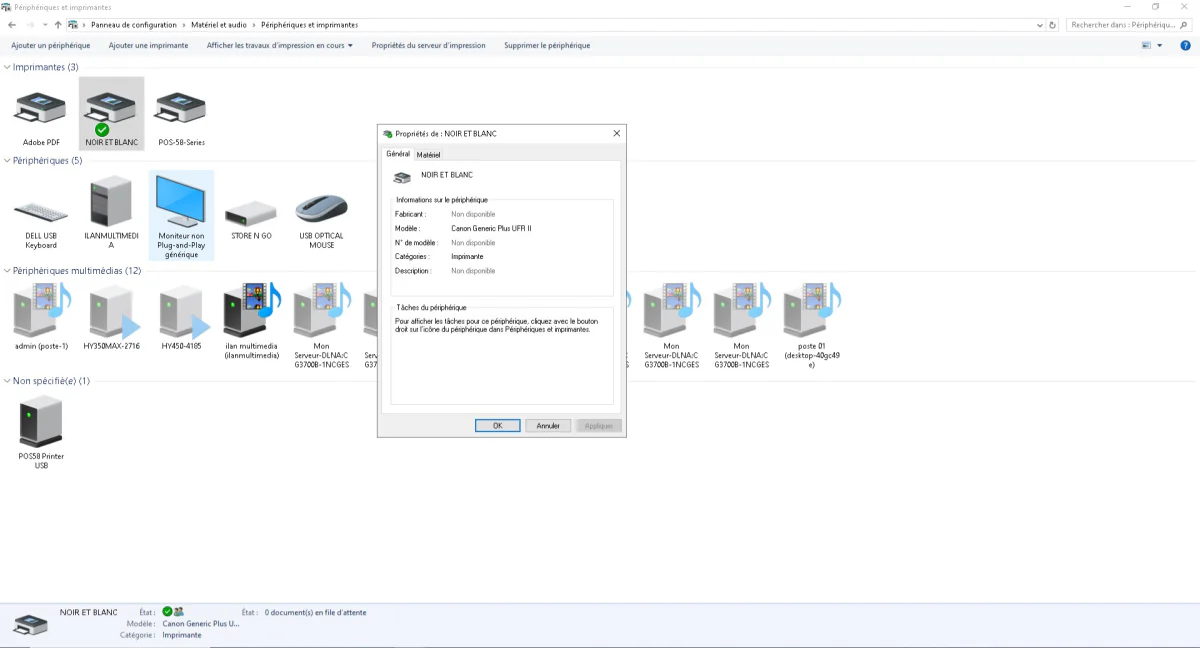
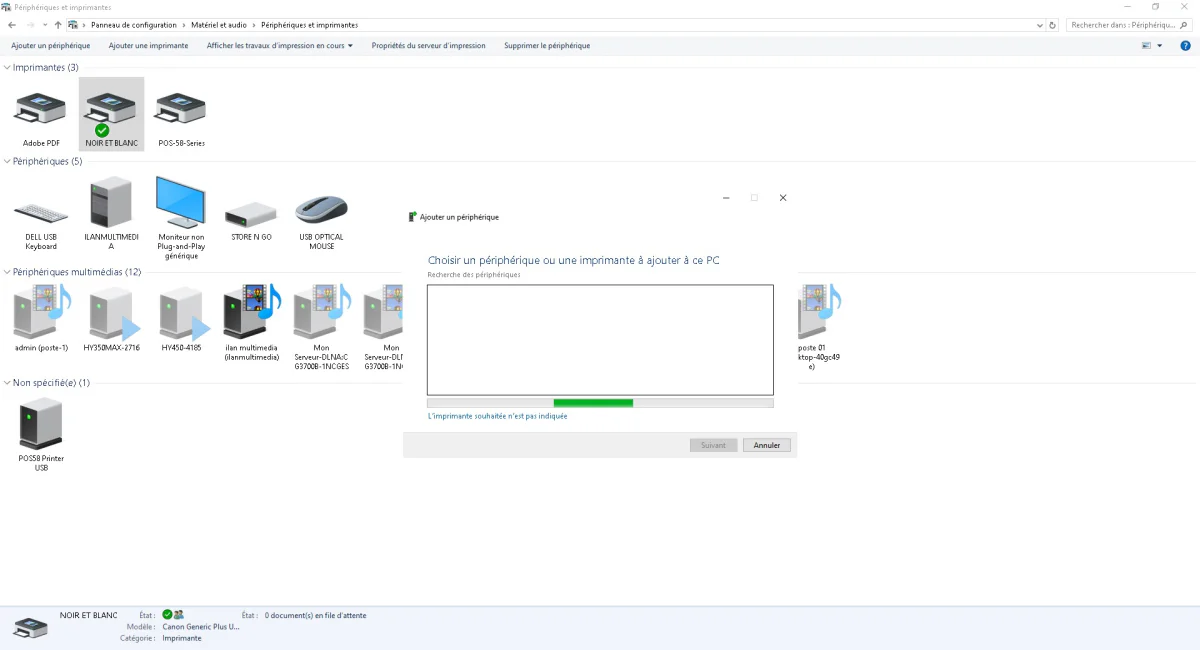
Many clients think they have a "network printer" when what they actually have is a shared printer, and that mix-up explains half the intermittent faults I see. A shared printer is plugged in by USB to a single computer, and that computer shares it out to the rest of the network. If that PC is switched off, asleep, or simply restarting for an update, nobody can print, even if the printer itself is powered on. A true network printer has its own IP address and connects directly to the router or box — it works as long as it's switched on, independent of any computer.
To find out which one you have, open the printer's properties on the PC and check the "Port" field. If it shows a computer name (for example \\POSTE-01\BlackAndWhite), it's a shared printer that depends on that machine staying on. If it shows an IP address, like IP_192.168.1.175, you have a genuine standalone network printer — exactly what's visible on the test page below.
Test page: from the printer itself vs. from the computer
Once the network checks are done, I always run two separate tests, because they don't prove the same thing. The first is a test page printed directly from the printer's own panel (usually under a Configuration or Network menu). If it prints, the hardware is fine and the printer is properly connected to wifi — the problem lies elsewhere, on the computer or driver side.
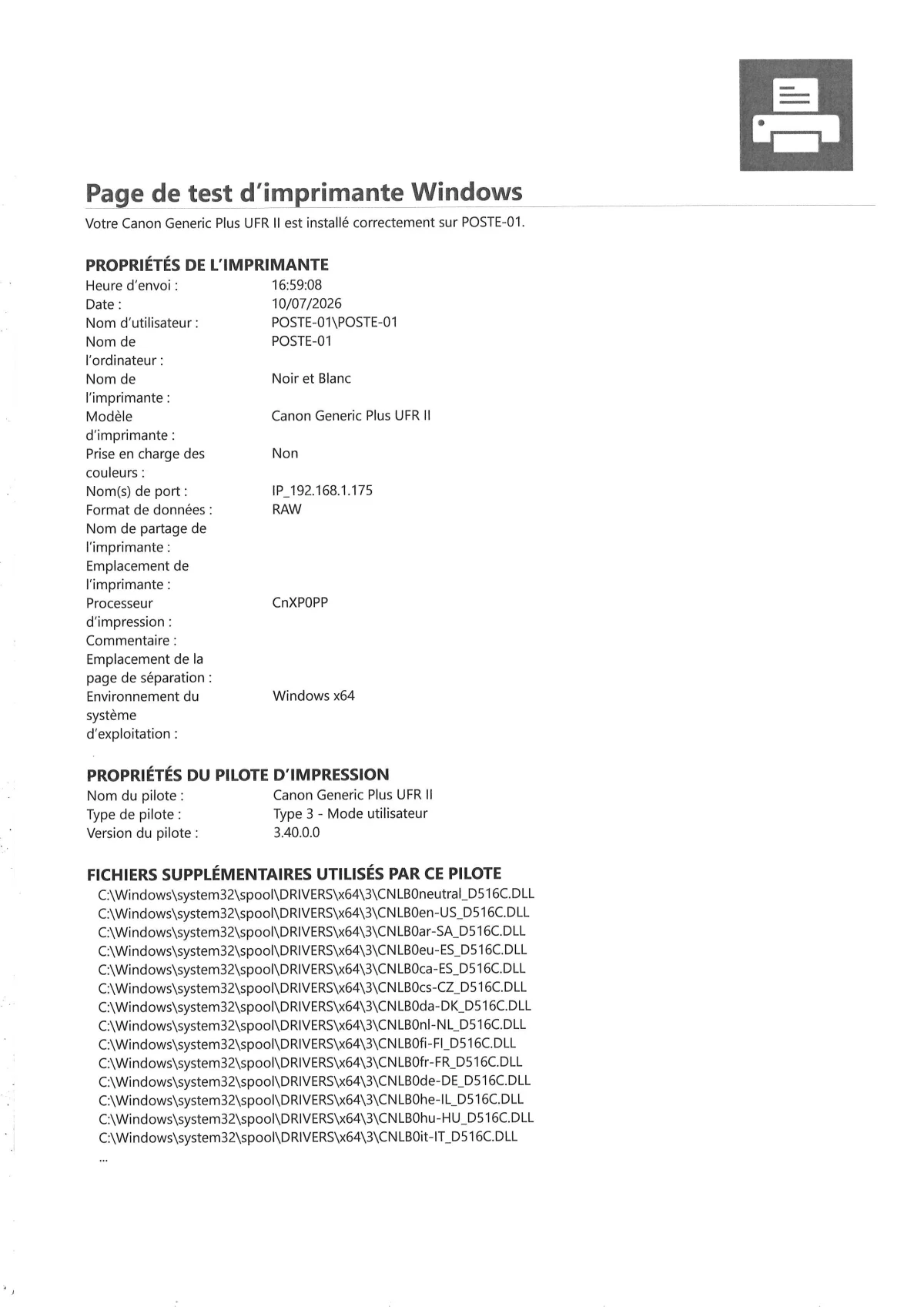
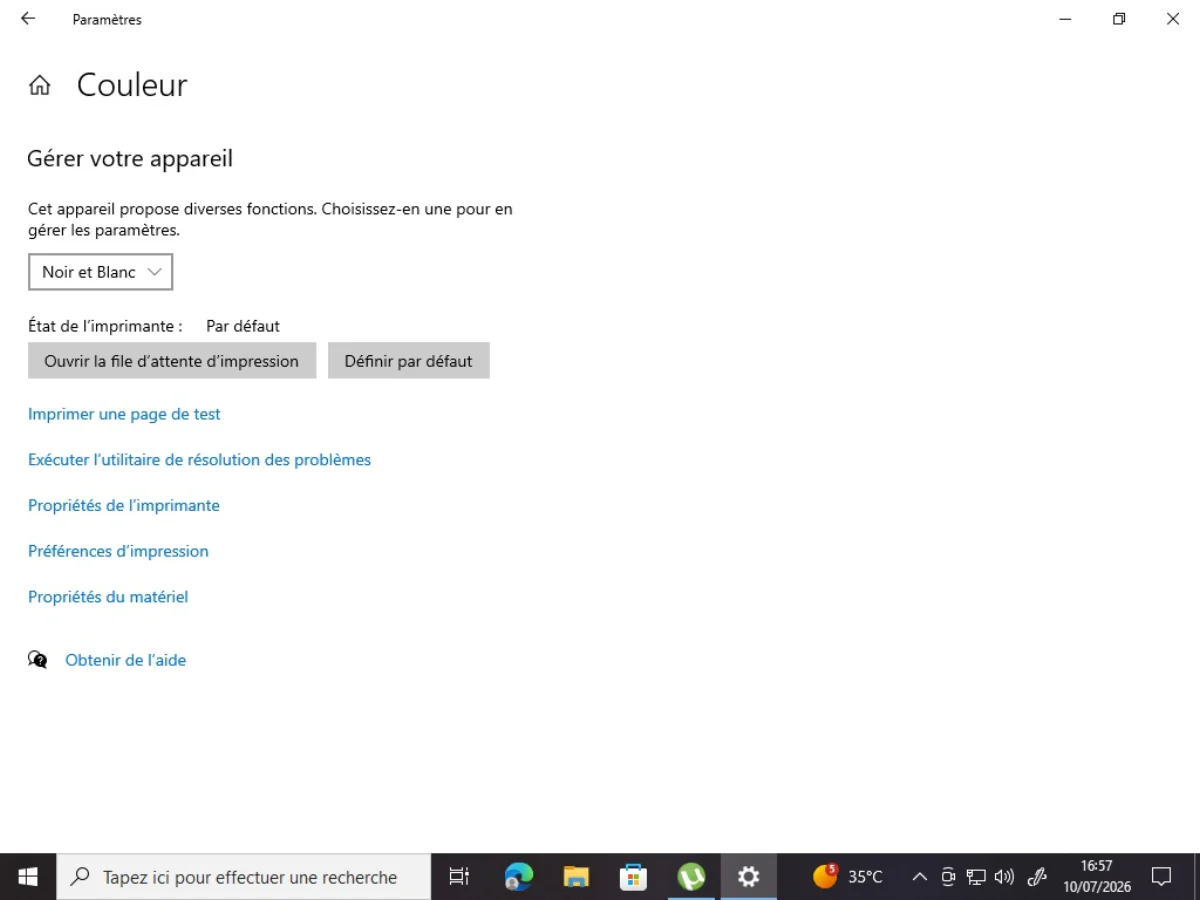
The second test is a test page printed from Windows or macOS (in Devices and Printers, right-click the printer, then "Print a test page"). It confirms that this specific computer can actually talk to the printer through its driver. If the printer's own test succeeds but the computer's test fails, the fault is local to that machine — wrong driver, wrong port, or a different network, as covered in Step 2. If even the printer's own test fails, go back and check the printer's wifi connection directly.
When the fault is the router, not the printer
Some faults come back after every power cut or router restart, and that's rarely a coincidence. Without a static IP or a DHCP reservation, the printer can receive a new IP address every time the router reboots, while the computer keeps looking for the old one. The classic symptom: "it worked yesterday, nothing today, I didn't touch anything." From the router's admin page, a DHCP reservation locks the printer's IP address to its MAC address, and the problem stops for good.
Another common case, after a router swap (a new Livebox or Freebox for a client, for example): the old wifi network no longer exists, and the printer, which was never reconfigured, keeps searching for a network that's gone. It then has to be reconnected to the new wifi from its own screen, exactly like a smartphone. I've seen this at several small businesses in the 16th arrondissement right after a fibre contract renewal, often alongside a poorly secured wifi network spotted along the way.
Calling a technician, and a realistic Paris price
If the printer still won't cooperate after all of this, or you'd rather not dig through router settings yourself, a technician can come and sort it on site. For an individual in Paris, an on-site diagnosis and fix for a network printer usually runs 70 to 90 euros, cartridges and paper not included, when it's solved in one visit. If the printer needs a full reconfiguration — static IP, re-sharing across several computers, or replacing a faulty driver on multiple machines — expect closer to 90 to 130 euros. For a small business with several workstations and a printer shared through a small server, the conversation often connects to a broader question of a properly built network setup, and I can fold both into a single visit.
For a clean setup from the start — wifi properly configured, and a printer that's genuinely networked rather than shared through a fragile single PC — I offer a full wifi and printer installation service, tested on every workstation before I leave. It's also what I recommend after a home IT support visit when the wifi itself is at fault: there's no point reconfiguring the printer if the network carrying it stays unstable, a subject I cover in this article on slow home wifi.
FAQ
Why did my network printer disappear overnight when nothing changed?
Almost always an IP address change. The router restarted, or the printer's DHCP lease expired, and it picked up a new IP address your computer no longer knows. Print a test page from the printer itself to see its current address, or set a DHCP reservation in the router's admin page so this stops happening.
My phone and tablet can print but my computer can't. Why?
Your computer is probably not on the same wifi network as the printer. Check the exact network name your computer is connected to: if your router broadcasts a separate 2.4 GHz and 5 GHz network, your computer may have switched to the 5 GHz band while the printer only speaks 2.4 GHz.
Should I restart the printer or the router first?
The printer first, powering it off for 30 seconds using its physical button. If the problem persists, restart the router next. Restarting both at the same time often hides which of the two was actually causing the fault.
How much does a technician charge for a network printer fix in Paris?
For an on-site diagnosis and fix in Paris, expect roughly 70 to 90 euros for a straightforward case, and up to 130 euros if the printer needs a full network reconfiguration with a static IP or re-sharing across several computers. The exact price depends on the printer model and the state of the network.